Spot your uncovered assets. Close your blindspot in one click!
 Release Date: September 28, 2026
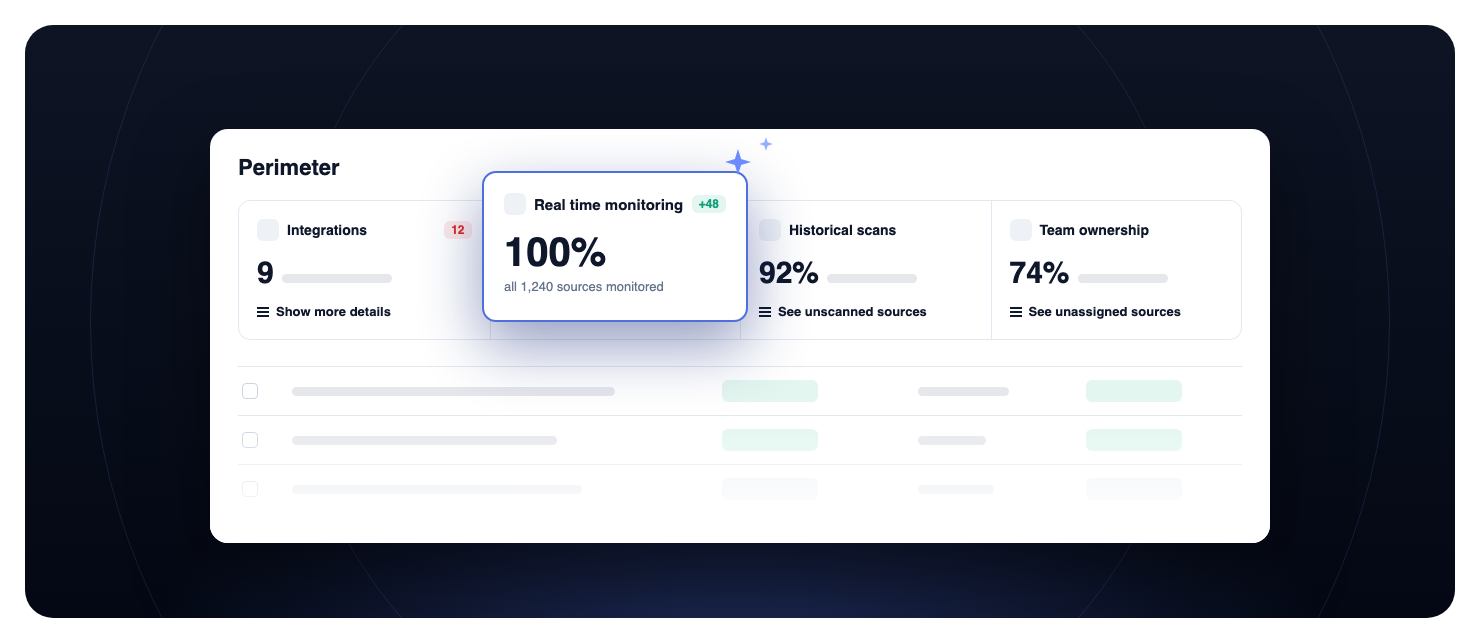
Is every source monitored? Has every source been scanned? Does every source have an owner? The perimeter page now answers these questions at the top, with the Coverage Hub.
What does this mean for you?
- Your coverage at a glance: four cards show your installed integrations, the share of sources monitored in real time, the share scanned successfully, and the share owned by a team.
- One click to the gap: card actions filter the sources table on the sources that need action: unmonitored, unscanned, or unassigned.
- Unreachable sources stand out: a red badge counts the sources GitGuardian cannot reach. Show more details lists your integrations with their sources, and flags the ones with unreachable sources.
- Sources at risk first: the table is sorted by open incidents. The Has open incidents filter replaces the Health filter, and your saved views are migrated.
- Team ownership in the table: the new Teams column shows the teams of each source, and the No team assigned option of the Team filter lists the sources without one.
Why is this important?
Two gaps keep secrets exposed: unmonitored sources remain a blind spot, and often hide critical secrets that still work, while sources without a clear owner delay secret revocation for a long time. Either way, the door stays open. The Coverage Hub makes both gaps visible and puts the fix one click away.
Get Started Today!
Open your perimeter page, click an action on a card, then select the sources and use a bulk action to monitor, scan, or assign them.
Manage your monitored perimeter
Enhancements
- Perimeter bulk actions: an action that does not apply to your selection is now grayed out, with a tooltip that explains why. When you monitor, unmonitor, or scan more than 30 sources, or when some sources will be skipped, the confirmation lists the skipped sources and why. See Bulk actions on perimeter sources.

