Integrate AWS S3
Monitor your AWS S3 buckets for exposed secrets in stored objects, configuration files, and data exports.
This integration is available on GitGuardian SaaS only. Self-hosted support is not available at this stage.
Why monitor AWS S3?
AWS S3 is one of the most widely used storage services in cloud environments, and it accumulates a wide variety of content over time: database backups, application logs, data exports, Infrastructure-as-Code artifacts, configuration files, and CI/CD build outputs. Each of these categories is a common source of leaked credentials: API keys embedded in configuration files, database passwords in backup scripts, or cloud provider secrets hardcoded in Terraform state files.
Because S3 buckets often sit outside the direct visibility of code review and version control workflows, secrets stored there tend to go undetected for long periods. Integrating GitGuardian with your S3 buckets gives your security team continuous coverage of this blind spot.
Capabilities
| Feature | Support | Details |
|---|---|---|
| Historical Scanning | ✅ (Supported) | Analyze existing objects across your selected buckets |
| Recurrent Scanning | ⏳ (Coming soon) | Scheduled scanning for new and modified objects |
| Monitored Perimeter | ✅ (Supported) | Granular selection of which buckets to monitor |
| Team Perimeter | ✅ (Supported) | Team-based access control |
| Presence Check | ❌ (Not Supported) | Not applicable for object storage |
| Source Visibility | ❌ (Not Supported) | All sources are considered private |
| File Scanning | ✅ (Supported) | Comprehensive file type support |
What we scan:
- Object files: scripts, configuration files, IaC artifacts, logs, and data exports
- Archives containing any of the above
Plan requirements: Available for GitGuardian Enterprise plan. Try it for free with a 30-day trial - any detected incidents remain accessible after the trial ends.
Detector coverage: To minimize false positives, Generic High Entropy Secret and Generic Password are disabled. All other detectors are enabled.
Set up your AWS S3 integration
Prerequisites:
- Owner or Manager account on your GitGuardian Dashboard
- AWS IAM permissions to create an OIDC identity provider and an IAM role in your AWS account
GitGuardian integrates with Amazon S3 using IAM role assumption via OIDC. Rather than using long-lived credentials, GitGuardian's SaaS platform assumes a read-only IAM role in your own AWS account. You create and fully control that role.
Step 1: Configure AWS authentication
In your AWS account, you need to set up an OIDC identity provider for GitGuardian and create an IAM role that trusts it.
Add the GitGuardian OIDC provider and create the IAM role by following the instructions in AWS IAM Integration. The trust policy uses sts:AssumeRoleWithWebIdentity and a sub condition scoped to your GitGuardian account ID to prevent confused-deputy attacks.
When configuring the IAM role's permission policy, attach read-only S3 permissions along with cloudwatch:GetMetricData, which GitGuardian uses to get a size estimate:
{
  "Version": "2012-10-17",
  "Statement": [
    {
      "Effect": "Allow",
      "Action": [
        "s3:Get*",
        "s3:List*",
        "s3:Describe*",
        "s3-object-lambda:Get*",
        "s3-object-lambda:List*"
      ],
      "Resource": "*"
    },
    {
      "Effect": "Allow",
      "Action": ["cloudwatch:GetMetricData"],
      "Resource": "*"
    }
  ]
}
We recommend scoping the S3 statement's Resource to only the specific bucket ARNs you intend to monitor (for example, arn:aws:s3:::my-bucket and arn:aws:s3:::my-bucket/*) to follow least-privilege principles. The cloudwatch:GetMetricData action does not support resource-level permissions and must keep "Resource": "*".
Step 2: Register your integration in GitGuardian
Once the IAM role is ready, register the integration in GitGuardian:
-
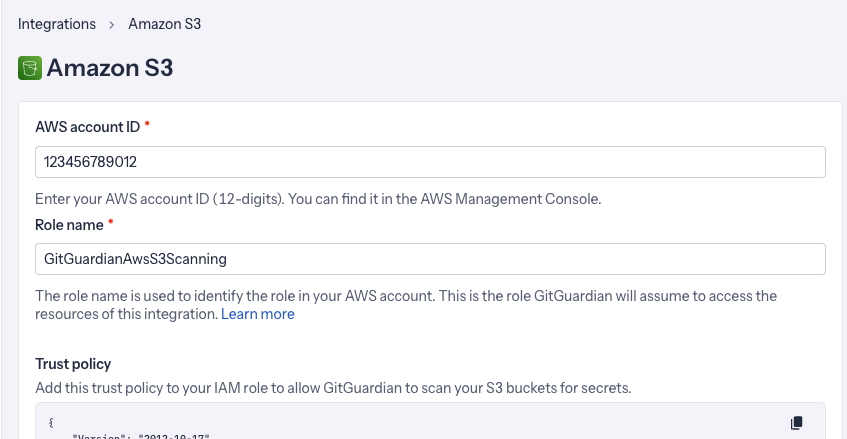
In the GitGuardian platform, navigate to the Sources integration page.
-
Find AWS S3 in the File Storage section. Use the search bar if needed.
-
Click Install.

-
Provide the following information:
- AWS account ID: the ID of the AWS account where you created the IAM role (for example,
123456789012). - Role name: the name of the IAM role you created (for example,
GitGuardianS3Scanning).
- AWS account ID: the ID of the AWS account where you created the IAM role (for example,
-
Click Install to complete the setup.
Region handling
By default, GitGuardian scans only buckets located in the region configured for the integration. This avoids unintended cross-region data transfer costs.
If you store objects in multiple regions, you can enable cross-region scanning in the integration settings. This option is off by default. Enabling it may incur additional AWS data transfer charges depending on your usage.
Storage classes and cost control
By default, GitGuardian scans only objects stored in the S3 Standard storage class. Objects in storage classes that can incur retrieval or transfer costs (for example, S3 Standard-IA, S3 One Zone-IA, and the S3 Glacier classes) are not scanned by default.
You can opt in to scanning those storage classes in the integration settings. Keep in mind that retrieving objects from these classes may incur additional AWS retrieval and data transfer costs.
Customize your monitored perimeter
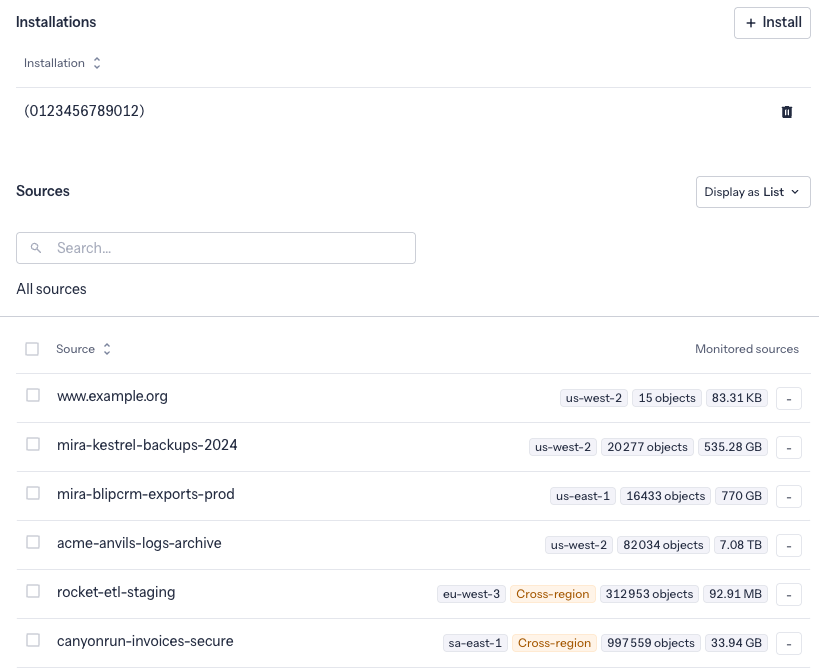
The AWS S3 integration lets you control precisely which buckets GitGuardian monitors.
To update your monitored perimeter:
-
Navigate to your AWS S3 integration settings.
-
Use the bucket list to enable or disable monitoring for specific buckets.
-
Click Save to apply your changes.
-
Changes take effect for the next scheduled scan.
Understanding scanning capabilities
Historical scanning
To trigger a historical scan, go to your perimeter page, select the AWS S3 sources you want to scan, and click Scan in the bulk actions bar. See Manage your monitored perimeter for plan-based size limits, error handling, and full details.
A historical scan analyzes all existing objects in the selected buckets. Because S3 buckets can accumulate content over months or years, the initial scan may surface a large number of secrets. Plan time to triage the resulting incidents.
Recurrent scanning
Recurrent scanning automatically re-scans your buckets at regular intervals to detect secrets in newly added or modified objects. This capability is coming soon.
Comprehensive file support
GitGuardian integration supports a wide range of file types:
- Text and code files:
- Source code (.py, .js, .java, .cpp, .cs, .rb, .go, .php, etc.)
- Configuration files (.yaml, .json, .xml, .ini, .conf, .properties, etc.)
- Documentation (.txt, .md, .rst, .log, etc.)
- Office documents:
- Microsoft Office (.docx, .xlsx, .pptx, .doc, .xls, .ppt)
- OpenOffice/LibreOffice (.odt, .ods, .odp)
- Rich text formats (.rtf)
- Others (.epub)
- Archive and compressed files (experimental):
- Archive formats (.zip, .7z, .rar, .tar, .gz, .tgz or .tar.gz, .bz2, .tbz2 or .tar.bz2, .xz, .txz or .tar.xz, .ar, .cpio, .pack)
- Container images (through .tar extensions)
- Other document formats:
- PDF documents (.pdf)
- Email formats (.eml, .msg)
- Web files (.html, .css)
File size considerations: Large files are skipped to maintain optimal performance. Size thresholds are as follows:
- 100 MB for any text file type.
- 500 MB for PDFs.
- 1 GB for any other file type listed.
Managing your integration
Monitor integration health
Track scanning progress and integration status from the integration dashboard.
Uninstalling the integration
If you need to remove the integration:
-
Navigate to Sources integration.
-
Click Edit next to AWS S3.
-
Click the delete icon next to the integration instance.
-
Confirm the removal.
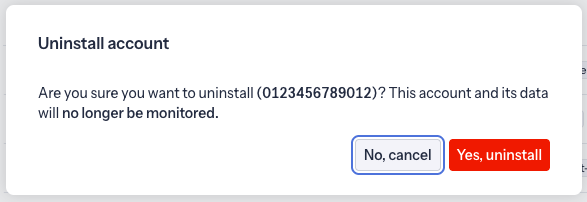
Removing the integration preserves your existing incident history but stops future scanning. To complete the cleanup, delete the IAM role and OIDC provider from your AWS account.
Privacy and compliance
Data handling
GitGuardian processes your data solely to detect exposed secrets:
- Read-only access: We never require write access unless scoped to creating webhooks to receive and process real-time events
- Minimal data retention: We store only data and metadata necessary for incident management
- Encryption: All data in transit and at rest is encrypted
- Compliance: We follow the same data protection standards as our other integrations
Regional considerations
GitGuardian hosts its services in two AWS regions: eu-central-1 (Frankfurt) and us-west-2 (Oregon). Ensure your GitGuardian deployment region aligns with your data residency requirements. Contact support if you need guidance on compliance with local regulations.
User notification
Country-specific laws and regulations may require you to inform your teams that your S3 bucket contents are being scanned for secrets. Here is a suggestion for a message you may want to use:
As part of our internal information security process, the company scans its AWS S3 buckets for potential secret leaks using GitGuardian. All data collected will be processed for the purpose of detecting potential leaks. To find out more about how we manage your personal data and to exercise your rights, please refer to our employee/partner privacy notice. Please note that only buckets relating to the company's activity and business may be monitored and that users shall refrain from storing personal or sensitive data not relevant to the bucket's purpose.

