Microsoft Teams
This notifier can send messages to a Microsoft Teams channel for incident lifecycle events (from Internal and/or Public Monitoring), honeytoken alerts.
To set up your Microsoft Teams integration, provide a Microsoft Teams channel link in the Teams settings section and configure which events you want to receive notifications for.
How to integrate
-
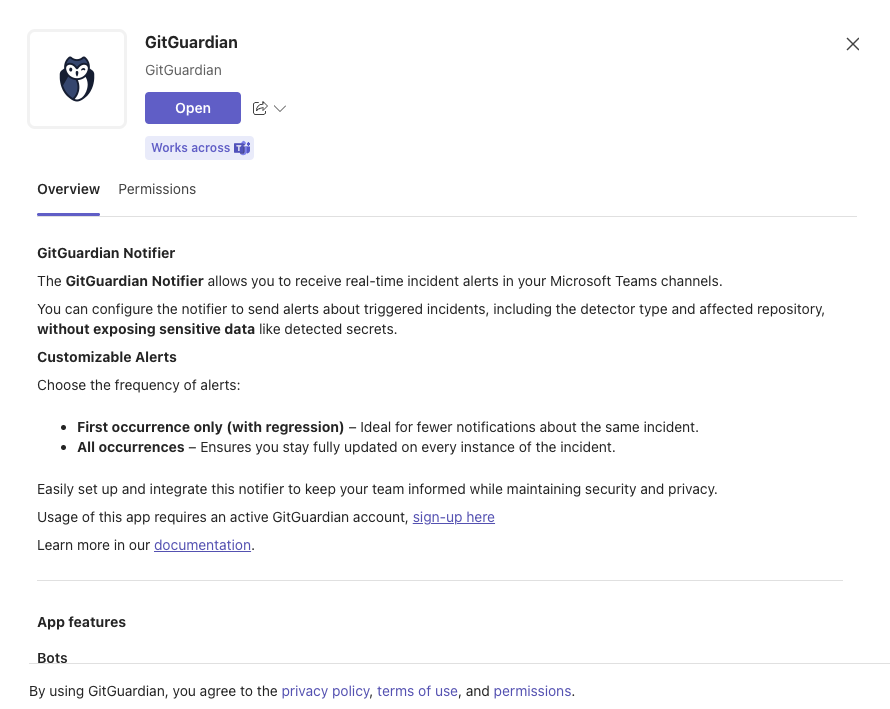
Go to the Microsoft Teams app store and add the GitGuardian app.
-
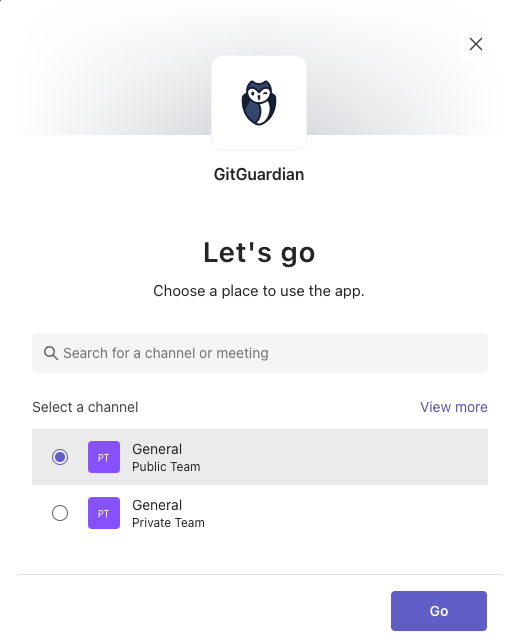
Select the channel where you want to send alerts.
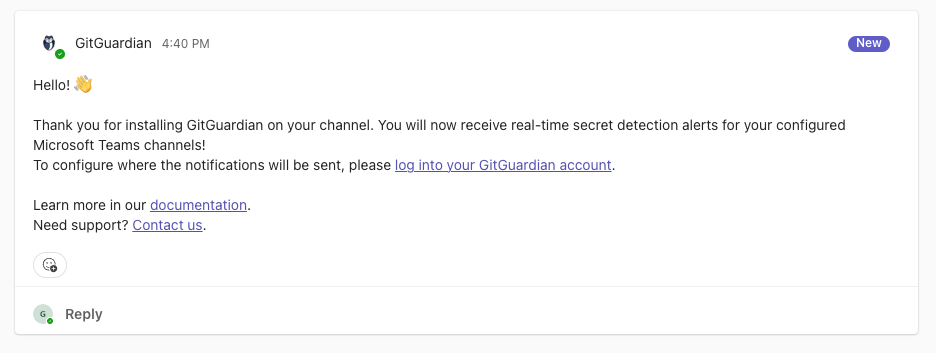
A welcome message is sent to your channel:
-
Copy the link to the channel:
- Right-click the channel name.
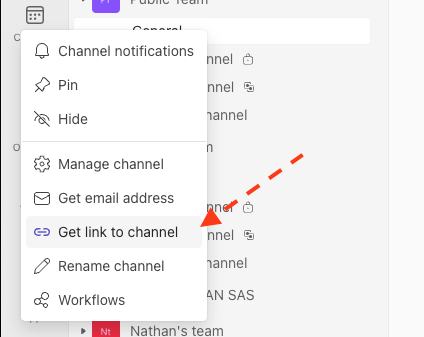
- Select Get link to channel.
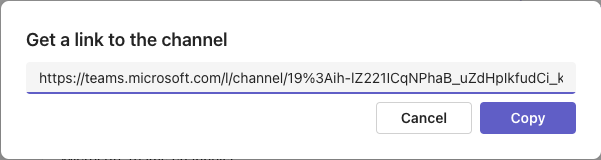
- Right-click the channel name.
-
Add the integration to your team in the Microsoft Teams integration section of your dashboard settings.
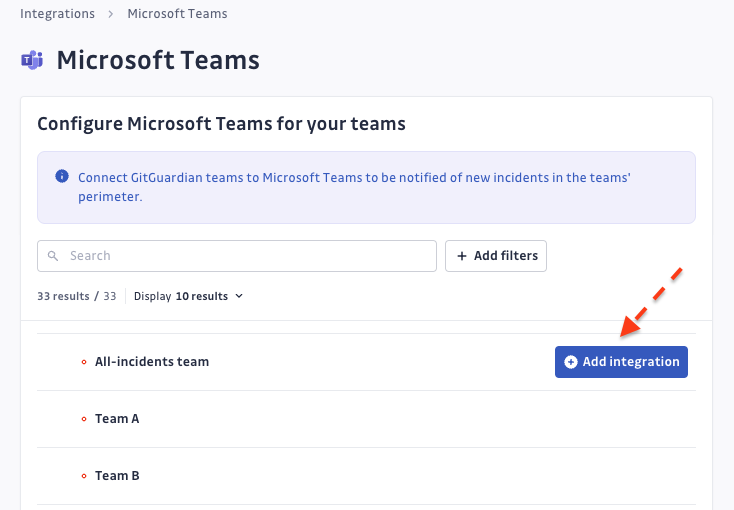
Team-level configuration:
- Free workspace: You can only configure alerting on the 'All-incidents team'.
- Growth or Enterprise workspace: You can configure the integration on any team:
- Create it within the 'All-incidents team' to receive notifications for all workspace incidents.
- Create it within a specific team to receive notifications only for that team's incidents.
This can be done directly from the integration page or from the team page.
-
Paste the copied link.
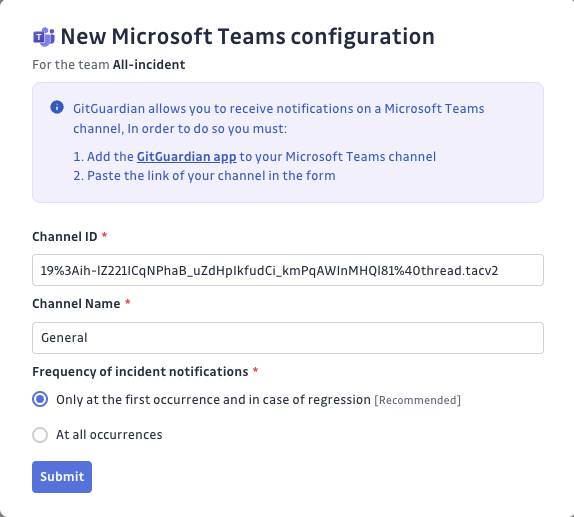
-
Select the events you would like to subscribe to and receive.
-
Your integration is now successfully configured.
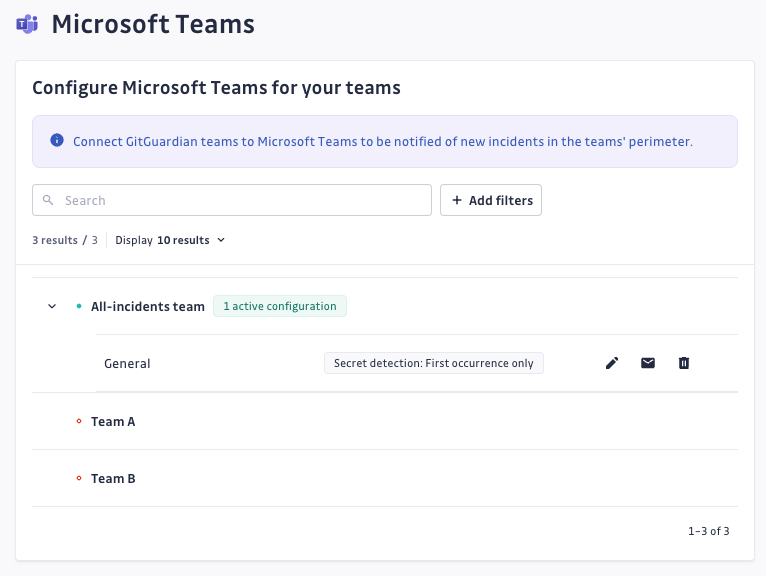
Events
You can subscribe to the following events from GitGuardian Internal Monitoring and/or GitGuardian Public Monitoring (if your workspace and team have access to Public Monitoring):
| Name | Description |
|---|---|
| New incident detected | A new incident has been detected. |
| New occurrence detected | A new occurrence has been detected for this incident. |
| Incident Validity changed | The validity has been updated for this incident. |
| Incident status change | Triggered when the status of an incident is updated. |
| Incident resolved | This incident has been resolved. |
| Incident ignored | This incident has been ignored. |
| Incident reopened | This incident has been reopened. |
| Incident regression | A new occurrence has been detected by real-time scanning of a connected source for an incident previously marked as resolved (manually or by the auto-resolver). |
| Incident Severity changed | The severity has been updated for this incident. |
| Risk score updated (Growth and Enterprise plans) | The risk score has been updated for this incident. Not sent for public incidents on workspaces where the agents analysis is enabled. |
| Incident assignments | Triggered when an incident is assigned, reassigned, or unassigned. |
| Incident assigned | This incident has been assigned to a user. |
| Incident reassigned | This incident has been reassigned to a different user. |
| Incident unassigned | A user was unassigned from this incident. |
| Incident access | Triggered when a user's access to an incident changes. |
| Incident access granted | A user has been granted access to this incident. |
| Incident access revoked | Access to this incident has been revoked for a user. |
| Publicly shared | Triggered when the public sharing link of an incident changes. |
| Incident shared publicly | A user has generated a public sharing link for this incident. |
| Incident unshared publicly | A user has deactivated the public sharing link for this incident. |
| Messages | Triggered when a new message is added to an incident. |
| Feedback submitted | A feedback has been submitted for this incident. |
| New comment on an incident | A new note has been created for this incident. |
Filter notifications by incident criteria
You can define filtering rules so this notifier only sends notifications for incidents that match the criteria you choose — by severity, ML risk score, validity, secret type, or GitGuardian tags, on both internal and public monitoring incidents. The risk score is the exception: it is not available on public incidents if the agents analysis is enabled for the workspace. If you don't set any rule, every incident is notified (the default).
See Filter notifications by incident criteria for the full list of criteria and important notes on notification timing.
Setup MS Teams for self-hosted GitGuardian
-
Configure Your Microsoft Teams App
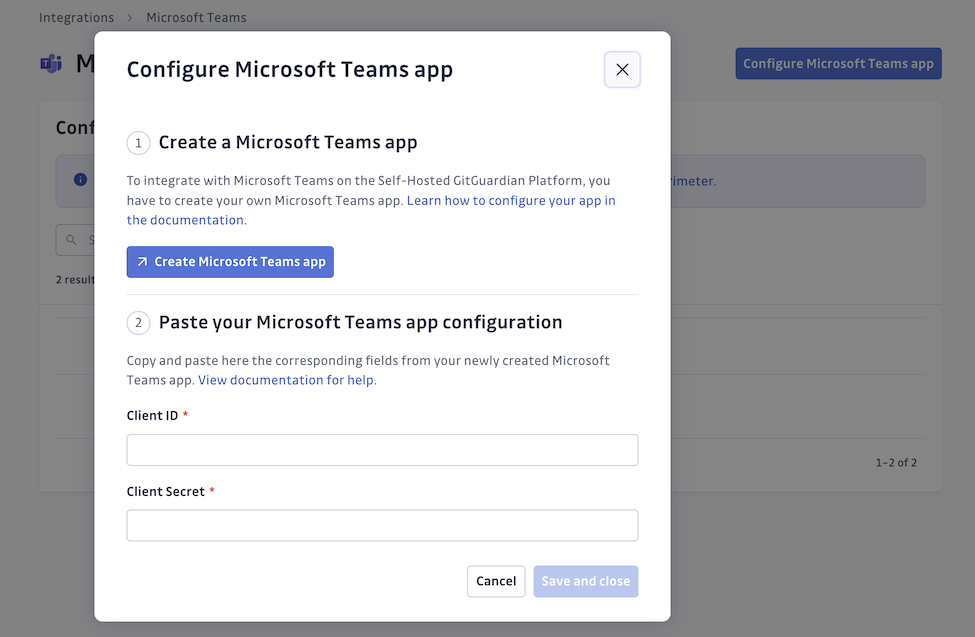
To integrate Microsoft Teams with the Self-Hosted GitGuardian platform, you must create your own Microsoft Teams app. This app will serve as the interface for sending notifications via a bot. Follow these steps:
a. Why Do We Need a Bot?
- The bot acts as the interface for sending messages in Microsoft Teams and will serve as the sender of all GitGuardian notifications.
- Users can add the bot to their preferred Teams channels via the Microsoft Teams Store and link it to GitGuardian Platform to enable team notifications.
b. Use the Microsoft Teams Developer Portal
- Access the Microsoft Teams Developer Portal.
- Create your app by following these steps:
- Click New app.
- Complete the
Basic Informationsection with the required details:- Name, Display Name, Description (short and long).
- Developer/Company Name.
- Terms of Service and Privacy Policy links.
c. Add a Bot
- Navigate to the Add Features section and add a bot:
- Create a new Entra identity for the bot or link it to an existing bot identity.
- Under
What can your bot do?, select Only send notifications. - Set the scope to Team and Group Chat for maximum flexibility.
d. Publish the App
- Navigate to the Publish to org section to publish the app privately within your organization.
- Once published, the app will be available in the Microsoft Teams Store for your organization.
- If the app is blocked by IT admins or requires approval, complete the validation steps in the Microsoft Teams Admin Portal.
e. Copy your bot's Client ID and Client Secret from your Microsoft Teams app into GitGuardian to complete the integration:
- In the Azure portal, search for your app and select Microsoft Entra ID.
- Find the Application ID (Client ID) in the Overview section.
- Generate a Client Secret in Certificates & Secrets and copy it immediately (it’s only shown once).
-
Select the channel where you want to send alerts.
A welcome message is sent to your channel:
-
Copy the link to the channel:
- Right-click the channel name.
- Select Get link to channel.
- Right-click the channel name.
-
Add the integration to your team in the Microsoft Teams integration section of your dashboard settings.
-
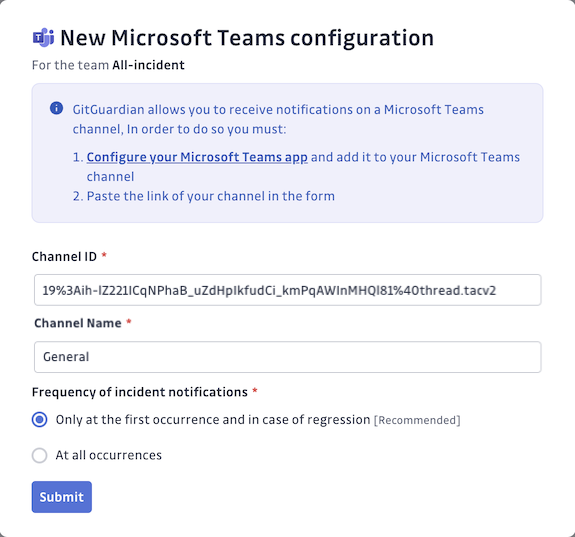
Paste the copied link.
-
Select the events you would like to subscribe to and receive (see the Events table above).
-
Your integration is now successfully configured.

