Sync users and teams
Overview
Recreating your organization by hand in GitGuardian does not scale: teams, their members, and the repositories they own already exist elsewhere, and they keep changing. GitGuardian offers several ways to keep that structure in sync automatically.
| Method | What it syncs | Requirements |
|---|---|---|
| SSO | Users, provisioned on first login (Just-In-Time) | SAML SSO configured on your workspace |
| SCIM | Users and teams from your identity provider, including deprovisioning | SCIM enabled with a supported identity provider |
| GitHub team sync | Teams, their members, and their perimeters from your GitHub organization | GitHub organization whose member emails GitGuardian can read, typically GitHub Enterprise Cloud with SAML SSO |
| Mapping scripts | Teams, their members, and their perimeters from GitHub or GitLab | A machine to run and maintain the scripts |
For user lifecycle management, we strongly recommend configuring SSO and enabling SCIM: they are the only methods that also handle deprovisioning when someone leaves your organization.
To mirror your VCS structure, prefer the native GitHub team sync when your organization is eligible, and fall back to the mapping scripts for GitLab or for GitHub organizations that do not meet the requirements.
Automatic team sync with GitHub
GitGuardian can mirror your GitHub organization in your workspace: teams are created, members are added with the right permissions, and each team perimeter is filled with the repositories the team owns.
Requirements
- The GitGuardian GitHub app installed on the organization, with its default permissions. GitHub.com and GitHub Enterprise Server are both supported.
- A way for GitGuardian to read the email of each member, which is how GitHub users are matched to GitGuardian members: the SAML identities of a GitHub Enterprise Cloud organization with SAML SSO, or member emails readable by the app. Without SAML SSO, members who hide their email in GitHub are skipped.
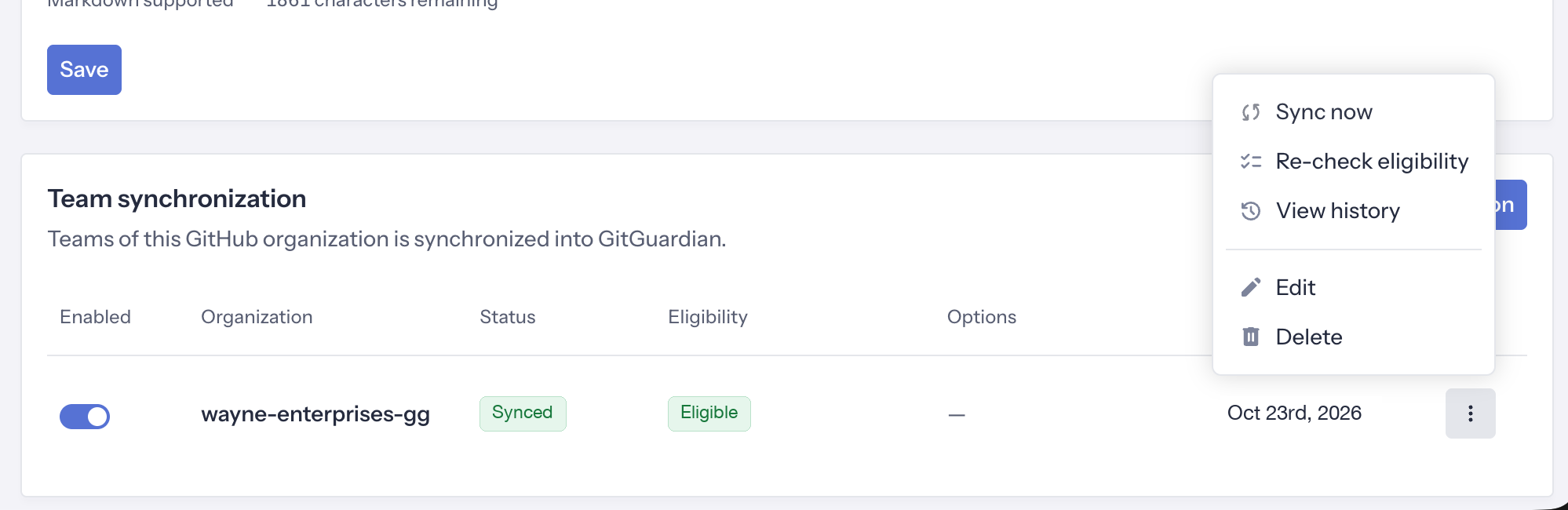
GitGuardian checks these conditions when you add the organization and shows the result in the Eligibility column, with the reason when something is missing, such as No SAML SSO or No readable member emails. Use Re-check eligibility once you have fixed it. If your organization later stops meeting them, the synchronization stops and your workspace managers are notified by email.
What gets synced
- Teams: every team of the organization, sub-teams included. Nesting is flattened, and a child team keeps its parent in its name.
- Members: every member of the team, with the GitGuardian permission matching the access level they have in GitHub. Team maintainers become team leaders in GitGuardian.
- Perimeters: the monitored repositories the team has access to in GitHub.
- Invitations (optional): with Invite missing members, GitHub members who are not part of your workspace yet are invited to it, and placed in their teams once they accept. This option is off by default.
Enable the synchronization
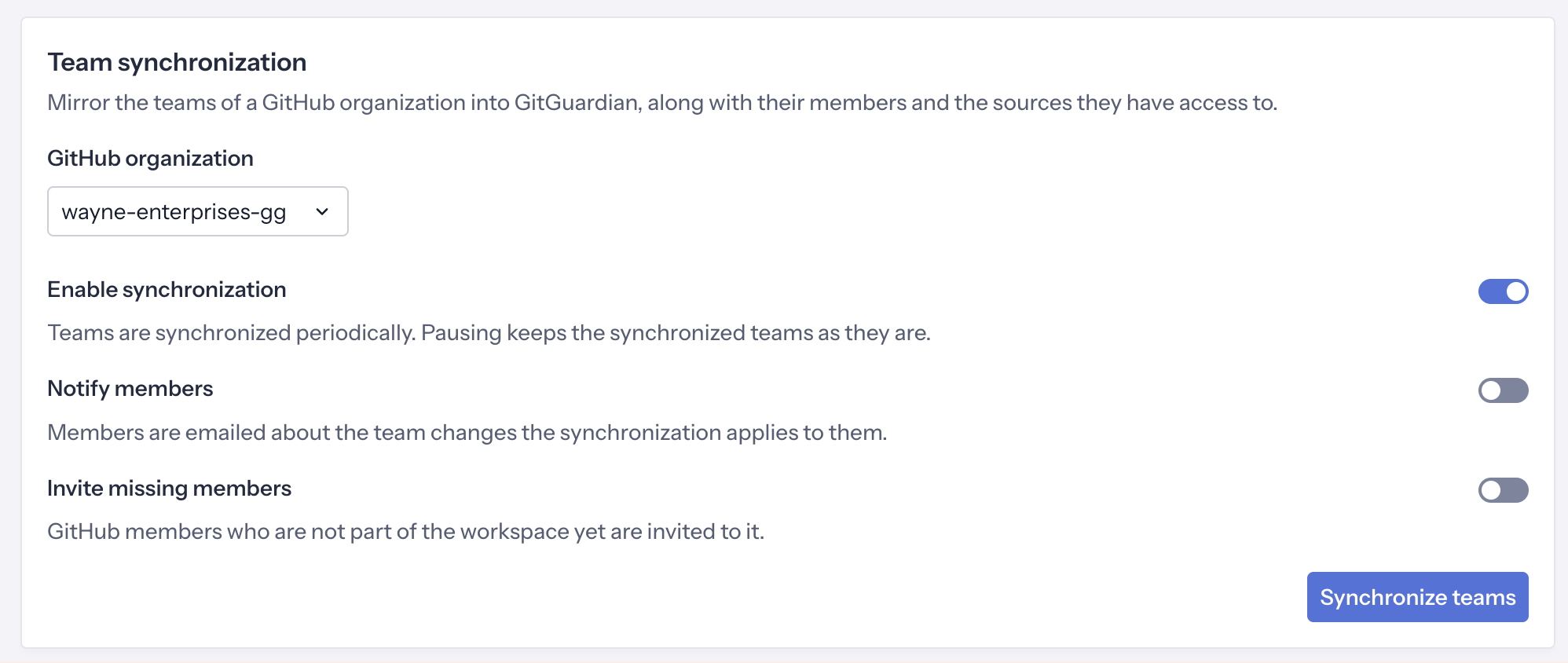
- Open Settings > Integrations, select your GitHub integration, and scroll to Team synchronization.
- Click Add organization and select the GitHub organization to mirror.
- Keep Enable synchronization on, and choose the options you need:
- Notify members: members receive an email about the team changes the synchronization applies to them. Off by default.
- Invite missing members: GitHub members who are not part of your workspace yet are invited to it. Off by default.
- Click Synchronize teams. The first synchronization starts right away.
The organization then appears in the Team synchronization table with its status, its eligibility, and the date of its last synchronization. Existing integrations are never switched on silently: add each organization yourself.
How it runs
The synchronization runs every 24 hours. From the menu of an organization, you can also:
- Sync now to apply the latest GitHub changes without waiting for the next run.
- Re-check eligibility after fixing a requirement.
- View history to see each run with its status, its trigger (enablement, scheduled, or manual), its duration, and the changes it applied.
Synced teams display a GitHub badge and are read-only in GitGuardian: their name, description, and membership are managed by GitHub. Teams you create manually and teams provisioned through SCIM keep working alongside them, but a given team is owned by a single source.
Turning Enable synchronization off pauses the synchronization and keeps the synced teams as they are. Deleting the organization from the Team synchronization table detaches its teams: they stay in your workspace as regular teams, which you can edit or delete from the Teams page.
The origin of each team is also available through the Public API, on the /v1/teams and /v1/teams/{team_id} endpoints, and team and membership changes are recorded in the audit log.
User and team mapping scripts
If you need more flexibility than the options above, the GitGuardian Public API lets you replicate any team structure and any permission model in your workspace, whatever the system it comes from: a version control system, but also a ticketing tool, an internal service catalog, or any other source of truth. The GitGuardian API client library, py-gitguardian, takes care of the API calls for you.
We maintain two example scripts, for GitHub and GitLab, that you can run as they are or use as a starting point for your own source. They handle synchronization at scale, and the same approach applies to non-VCS sources.
Key features
1. User and team mapping
- Mapping: Automatically maps GitLab groups or GitHub teams, along with the repositories they own and the users associated with them, to GitGuardian Teams and their respective perimeters. For GitHub, this is achieved by leveraging IDP users when GitHub Enterprise Server is utilized, or alternatively, by analyzing the Organization members as a fallback. However, for Organization members, synchronization will be skipped if their email addresses are hidden by default, as these are required for mapping.
- Platform Support: GitHub, GitLab.
- Automated User Management: Invites new users and syncs memberships. Does not handle inactive users or their removal— for this, please use SCIM, which now supports both user provisioning and deprovisioning. For GitHub, the script only maps users who have an email address on their profile or if SAML is configured on GitHub with an Enterprise plan.
2. Permission handling
- Selective Permissions: Excludes elevated roles (e.g., managers, owners) to prevent over-permissioning.
3. Notifications
- Email Alerts: Option to notify users of changes, invitations, or removal from teams.
4. Logging and error handling
- Detailed Logs: Tracks success, failure, and error details using the Python
loggingmodule. - Error Handling: Provides graceful handling of API errors with appropriate logging.
5. Scalability
- Large Dataset Support: Handles large datasets (1000+ users and teams) with pagination.
6. Customization
- Authentication: Easily configurable using tokens for GitHub.
- Script Modifications: Designed for modularity, allowing easy customization to extend functionality.
Getting started
Refer to the repository's README file for detailed instructions on configuring and running the script for your platform:
- GitHub: team-mapping-github-gitguardian
- GitLab: team-mapping-gitlab-gitguardian
Support
For further assistance, reach out at support@gitguardian.com.

