GitHub organizations
GitGuardian can monitor multiple GitHub organizations that belong to your company. Once configured, GitGuardian will:
- scan every commit on each repository of the GitHub organization,
- add the organization’s members to the list of monitored developers, and scan any of their public activity.
Adding organizations to your perimeter
To add GitHub organizations to your monitored list, GitGuardian needs the GitHub ID of each organization. Contact our support team if you are missing a company-owned organization in your perimeter.
Monitoring private members
You can enrich the list of monitored developers with the private members of your GitHub organization by providing GitGuardian a GitHub access token. Both token types are supported:
- Fine-grained token with the
Members: Readorganization permission. - Classic token with the
read:orgscope.
Step 1: Generate a personal access token
Generate a personal access token from a GitHub account with access to the organization.
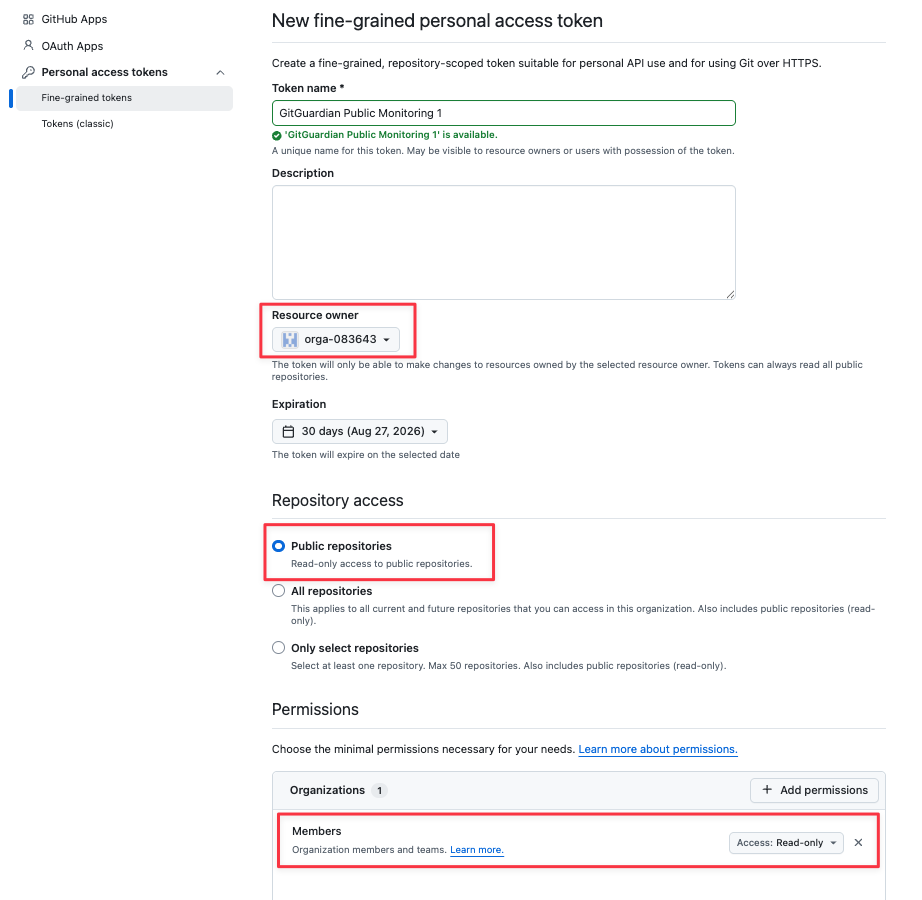
For a fine-grained token, GitGuardian only needs to read the organization's member list. A fine-grained token is scoped to a single organization, so create one token per organization you want to monitor, and configure it as follows:
- Resource owner: select the organization you want to monitor.
- Repository access: select "Public repositories".
- Permissions: under "Organization permissions", set "Members" to "Read-only".
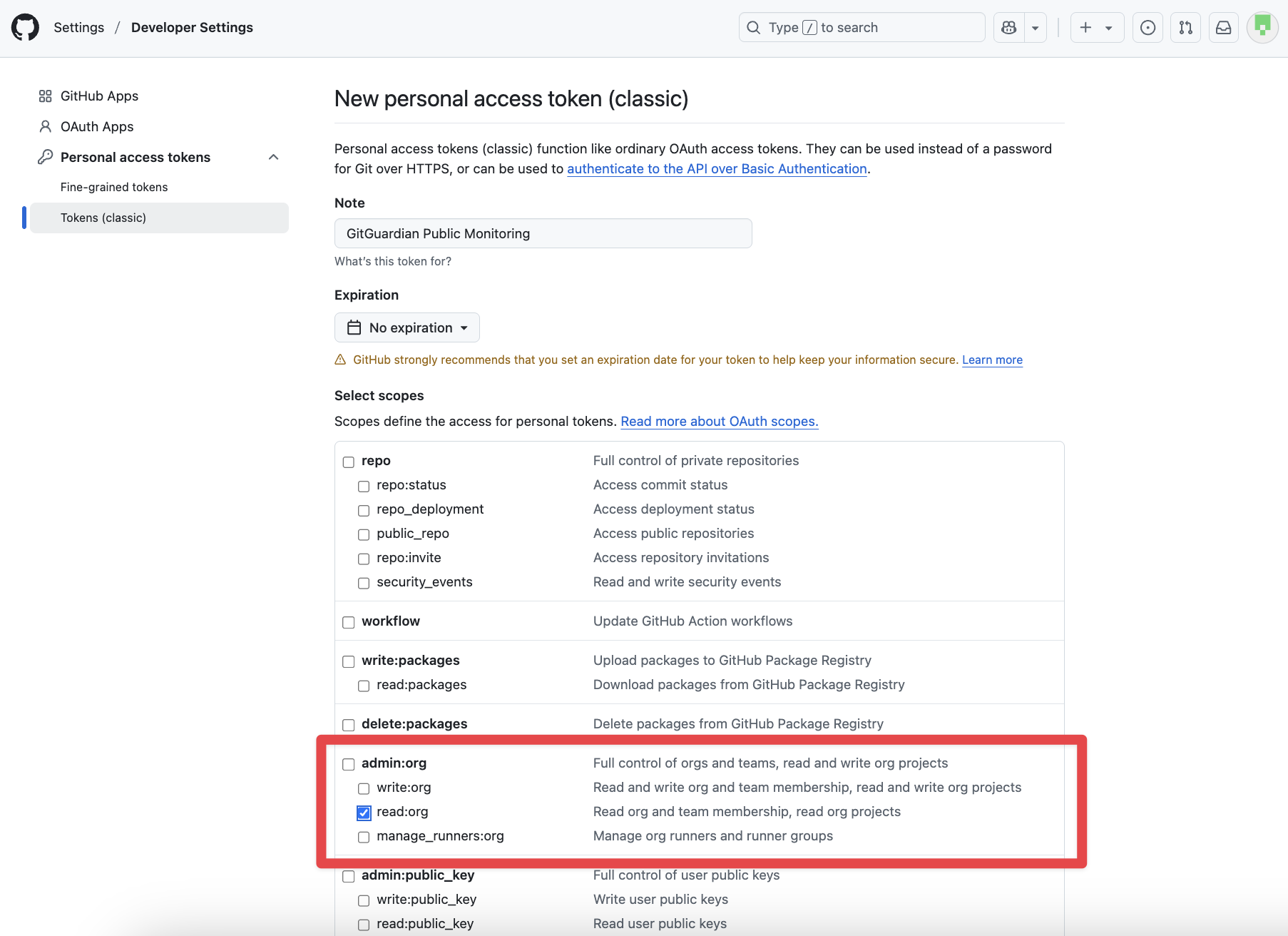
For a classic token, grant the read:org scope and select "No expiration" so that GitGuardian can continuously monitor the future addition/removal of members. A single classic token can cover every organization the account belongs to.
Step 2: Submit the token to GitGuardian
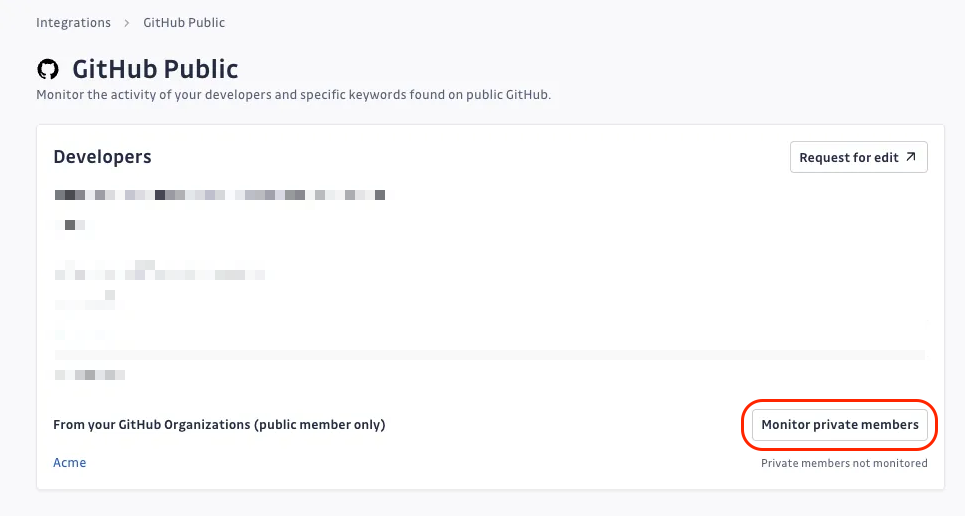
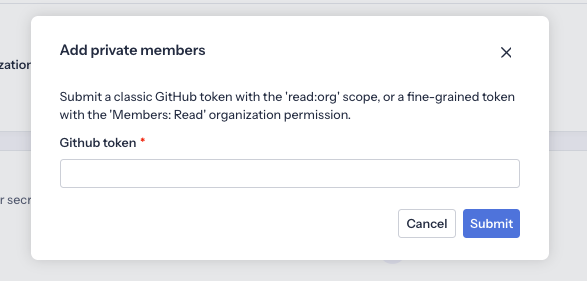
Go to your GitGuardian's settings in Settings > Public monitoring > Perimeter, click "Monitor private members" and submit the GitHub token generated in the previous step.
Step 3: Check the status per organization
After you submit the token, GitGuardian checks each organization in your perimeter and displays one of the following statuses:
- Private members monitored: GitGuardian can read the organization's private members and has added them to your monitored developers.
- Private member access unconfirmed: your organization may have no private members, or your token may lack the required access. Check your token's organization permissions on GitHub - for a fine-grained token, make sure the
Members: Readorganization permission is granted. - Private members not monitored: no token is linked to the organization, or the linked tokens are invalid or have no access to it. This is expected for organizations that a fine-grained token is not scoped to - submit a dedicated token for each organization you want to monitor.
Managing your organization perimeter
To view and manage GitHub organizations in your perimeter:
- Navigate to Perimeter > Public monitoring > GitHub sources
- Review the list of monitored organizations and repositories
- Contact our support team to add missing company-owned organizations

