Integrate Jira Data Center
Monitor Jira Data Center projects for exposed secrets in issue descriptions, comments, and project documentation.
Why Monitor Jira Data Center?
Jira Data Center houses your organization's enterprise project management and issue tracking in a self-hosted environment. Enterprise development teams regularly document technical issues, share debugging information, and collaborate on complex problems, often embedding production credentials, internal API keys, and infrastructure secrets directly in issue descriptions, comments, and custom field configurations.
Capabilities
| Feature | Support | Details |
|---|---|---|
| Historical Scanning | ✅ (Manual Trigger) | Analyze existing issues and their histories |
| Real-time Detection | ✅ (Supported) | Instant detection via Jira webhooks |
| Monitored Perimeter | ✅ (Supported) | Granular monitoring of projects |
| Team Perimeter | ✅ (Supported) | Team-based access control |
| Presence Check | ❌ (Not Supported) | Not applicable for project management content |
| Source Visibility | ❌ (Not Supported) | All projects show as private |
| File Attachments | ✅ (Supported) | Uploaded file attachments are scanned |
What we scan:
- Issue descriptions and summaries
- Comments and discussion threads
- File attachments
- Custom fields and project documentation
Plan requirements: Available for GitGuardian Enterprise plan. Try it for free with a 30-day trial - any detected incidents remain accessible after the trial ends.
Detector coverage: To minimize false positives, Generic High Entropy Secret and Generic Password are disabled. All other detectors are enabled.
Setup your Jira Data Center integration
Prerequisites:
- Owner or Manager account on your GitGuardian Dashboard
- Jira Data Center administrator permissions to create Personal Access Tokens
- Network connectivity between GitGuardian and your self-hosted services. Check out GitGuardian Bridge to enable secure connections between GitGuardian SaaS and your self-hosted services in private networks.
If your instance enforces API rate limits, the default values may be too low and can slow down GitGuardian's scanning. To scan in a reasonable time, raise the limits or exempt the account, token, or service account that GitGuardian uses from rate limiting. See Rate limits on self-hosted sources.
GitGuardian integrates with Jira Data Center via an administrator Personal Access Token with read-only access to your projects.
You can install GitGuardian on multiple Jira Data Center sites to monitor your projects.
- Make sure you're logged as an administrator in the Jira Data Center site you want to install
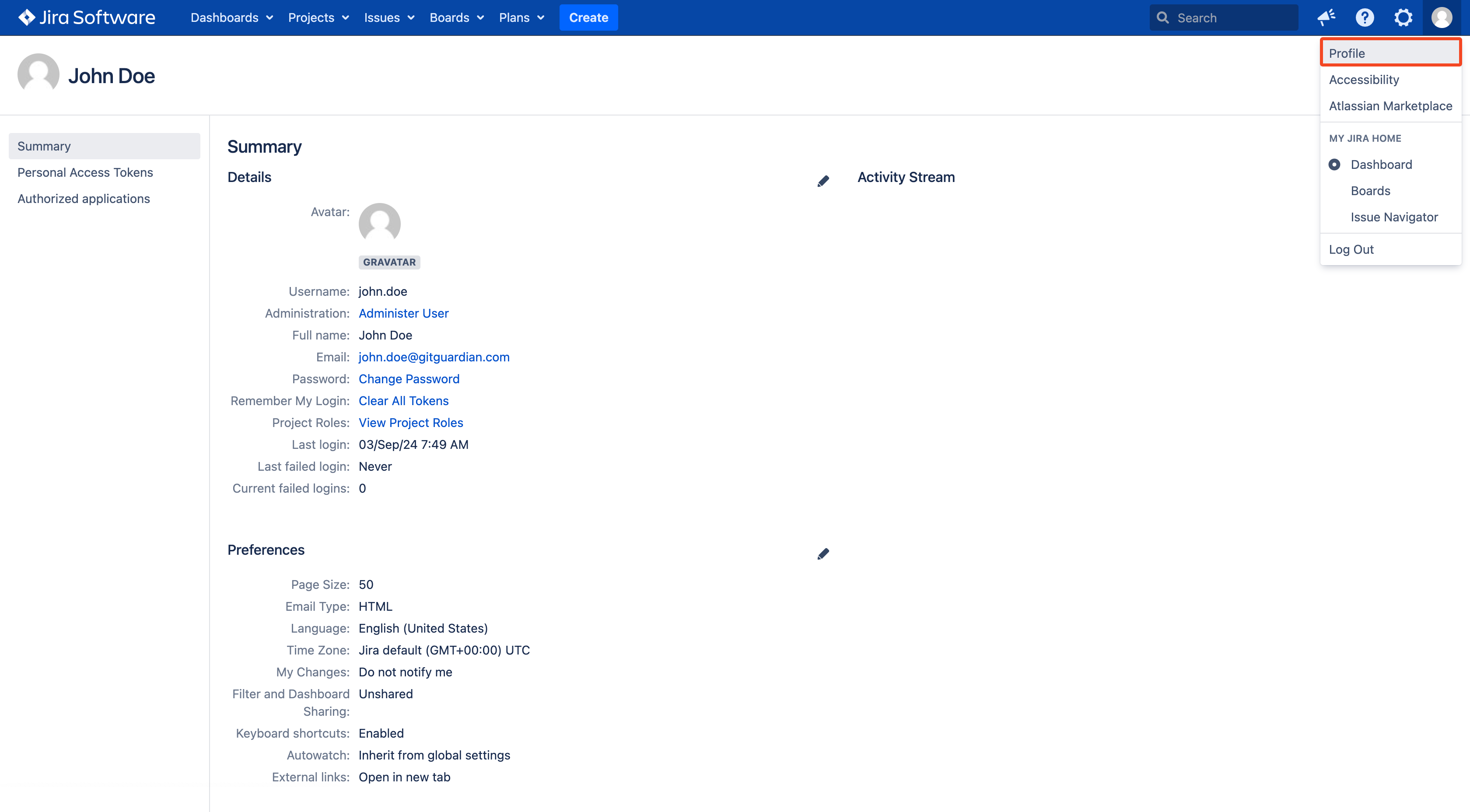
- Go to the Profile page
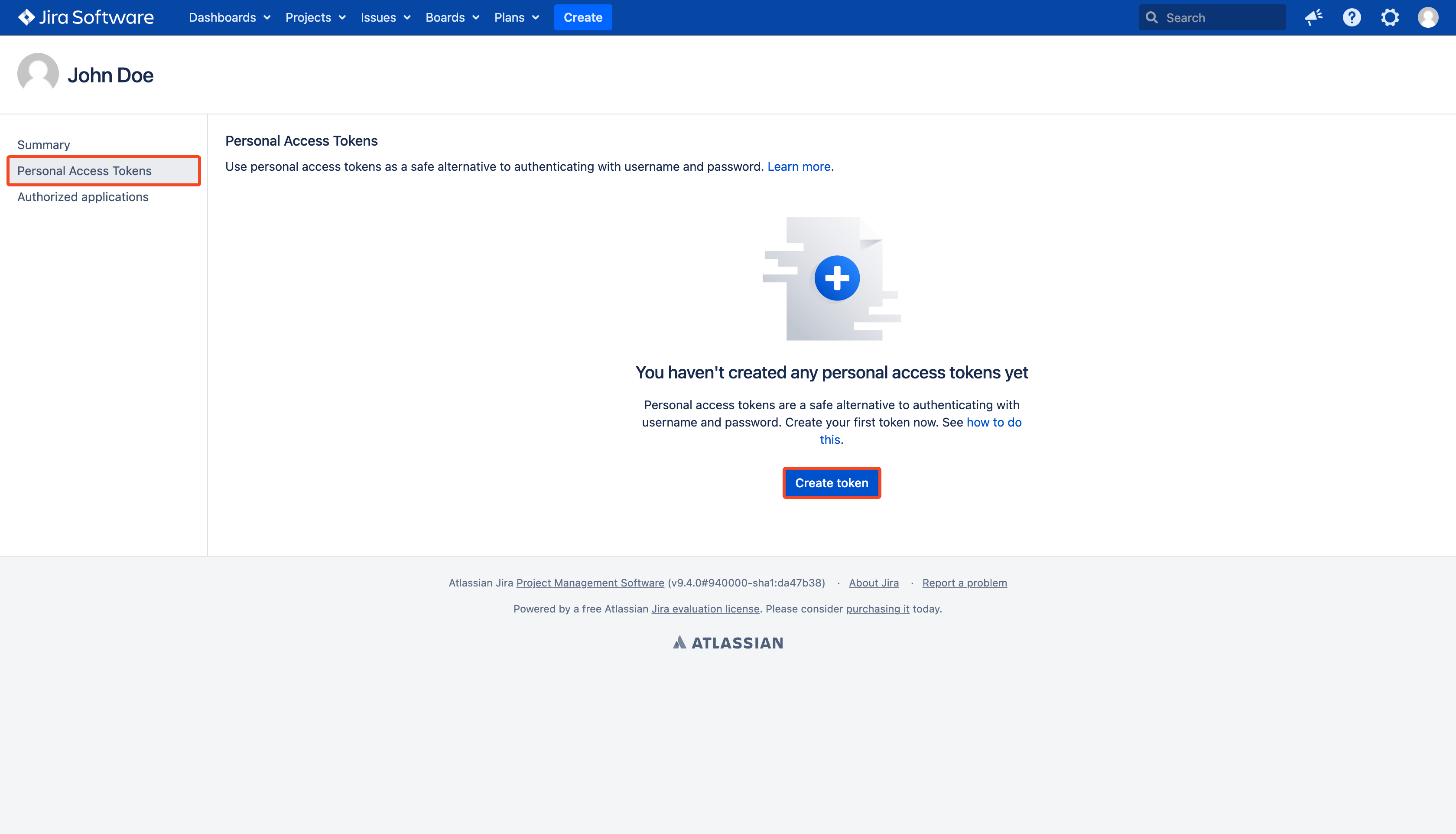
- Go to the Personal Access Tokens section and click Create token to create a new PAT
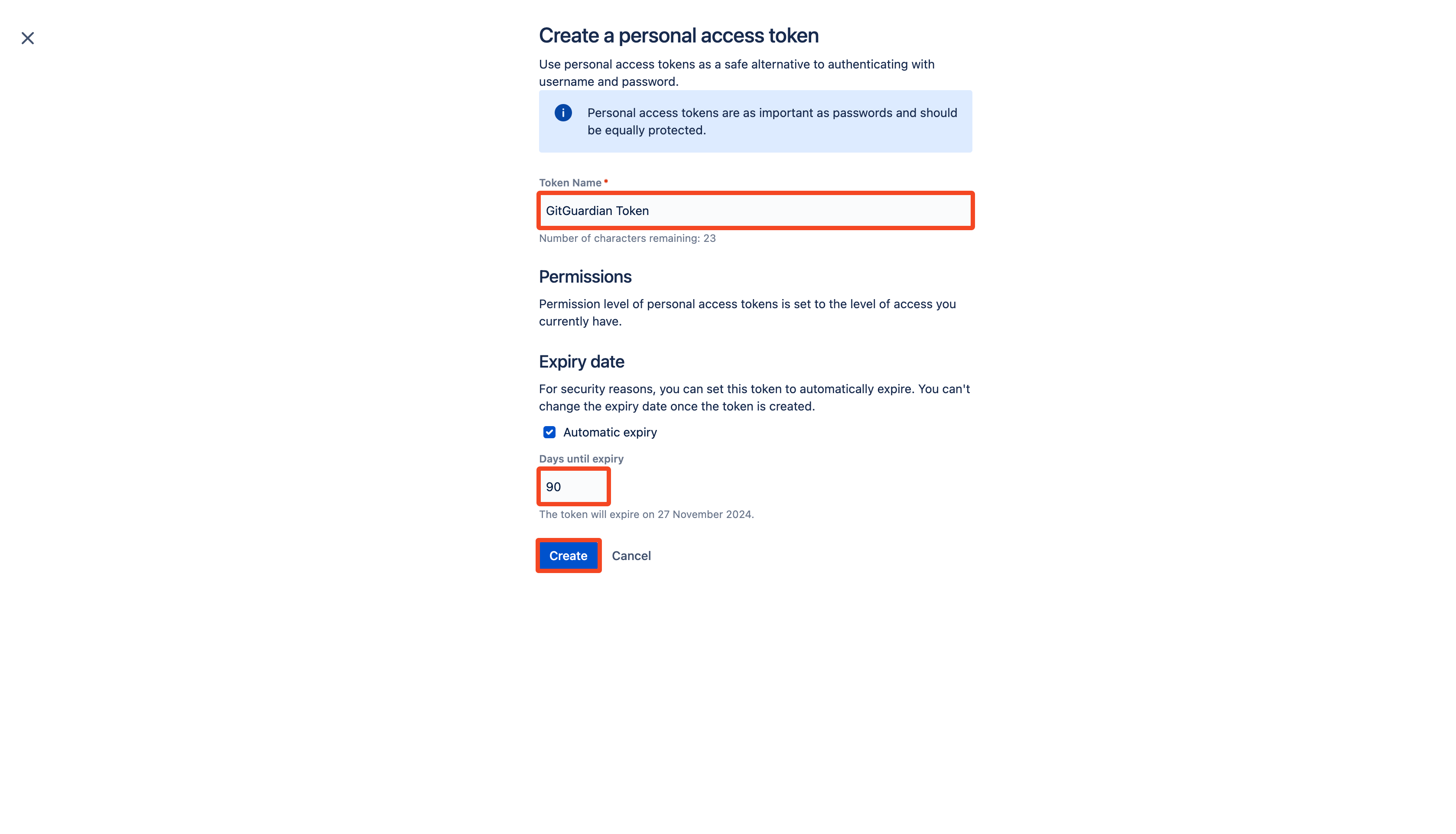
- Provide a Token Name, an optional Expiry date and click Create
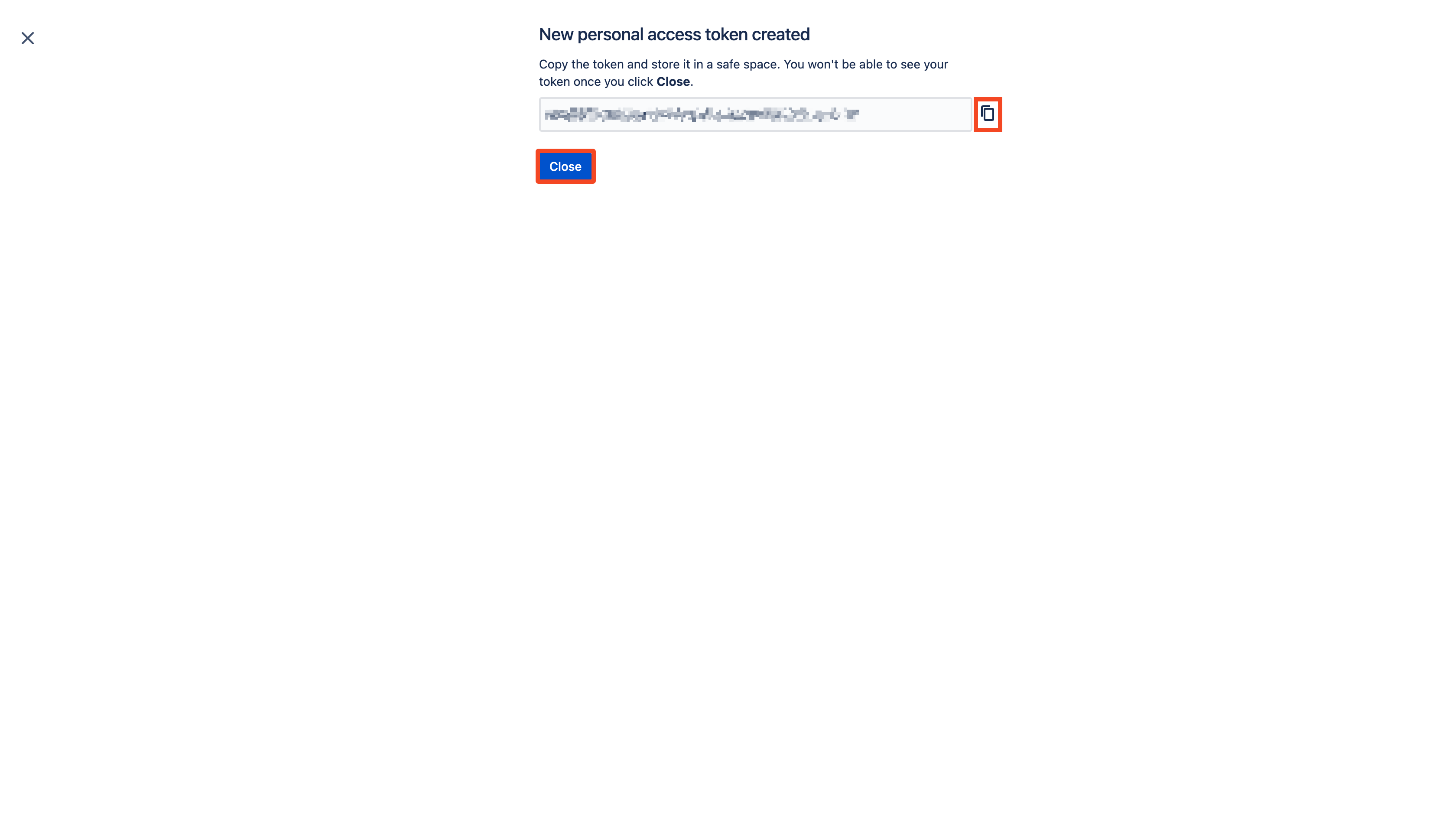
- Copy your new PAT and click Close
- In the GitGuardian platform, navigate to the Sources integration page
- Click Install next to Jira Data Center in the Ticketing section
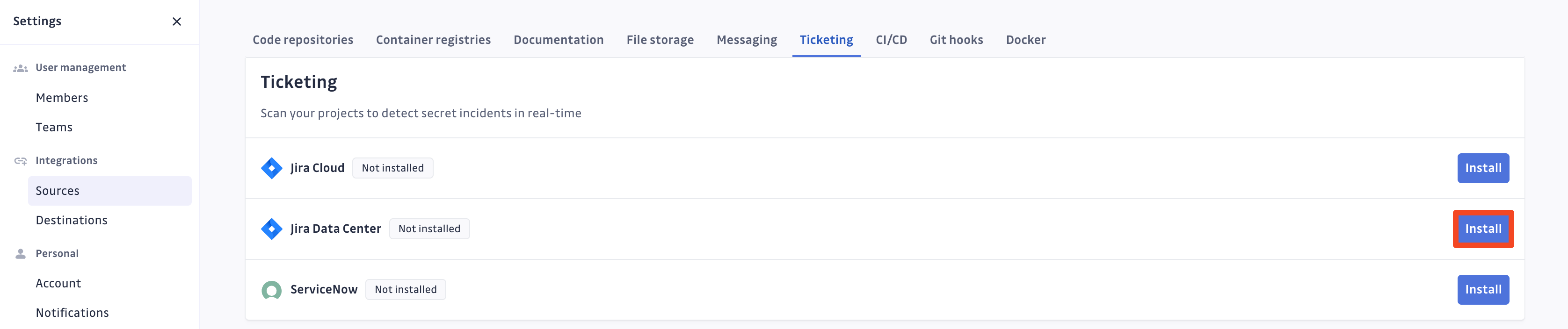
- Click Install on the Jira Data Center integration page
- Paste your Jira Data Center site URL, your Administrator Personal Access Token and click Add
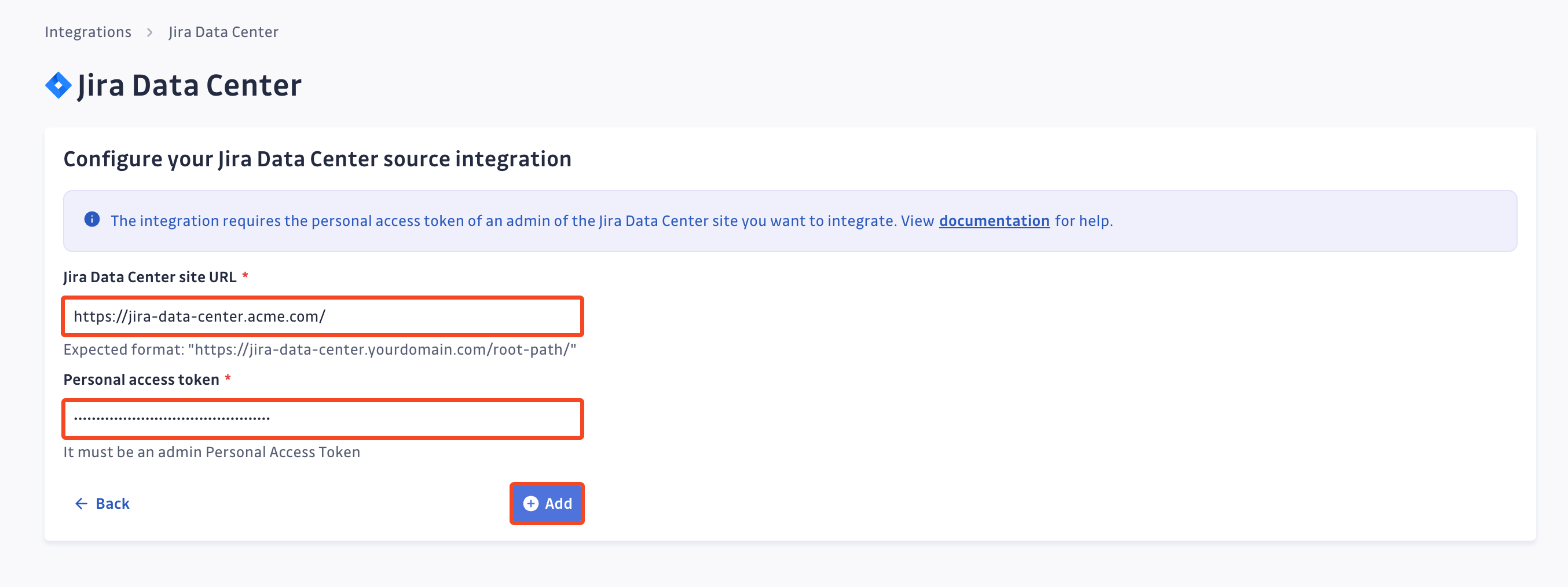
That's it! Your Jira Data Center site is now installed, and GitGuardian is monitoring all issues and comments of your projects for secrets.
GitGuardian no longer renews PATs. See the customer notice.
Understanding scanning capabilities
Historical scanning
Uncover your secret debt: When you first integrate this source, GitGuardian performs a comprehensive scan of your entire content history, based on your customized perimeter. This reveals secrets that may have been exposed weeks, months, or even years ago - helping you address your existing security debt.
How to trigger a historical scan: Go to your perimeter page, select the sources you want to scan, and click Scan in the bulk actions bar. See Manage your monitored perimeter for plan-based size limits, error handling, and full details.
Real-time scanning
Catch new exposures instantly: Once integrated, GitGuardian continuously monitors your content through event-based detection. Any new or modified content containing secrets are detected immediately, allowing you to respond quickly to new exposures.
Scanning your Jira Data Center history
GitGuardian enables you and encourages you to scan the entire history of your perimeter. By executing historical scanning, all secrets present in your Jira sources prior to installing GitGuardian will be detected.
Unlike Version Control Systems, historical scanning has to be manually executed from your perimeter page, by:
- Selecting your Jira Data Center sources
- Clicking scan from the top action bar
Update your Personal Access Token
You can replace the PAT used by an installed site at any time, for example before it expires or after rotating it. Updating the token in place keeps your configuration and monitored perimeter intact, so there is no need to reinstall.
- Create a new administrator PAT in Jira Data Center, following steps 1 to 5 above
- In the GitGuardian platform, navigate to the Sources integration page
- Click Edit next to Jira Data Center in the Ticketing section
- Update the token of the Jira Data Center site with your new PAT
GitGuardian validates the new token and runs a health check, so an unhealthy integration recovers immediately.
Uninstall your Jira Data Center site
To uninstall a Jira Data Center site:
- In the GitGuardian platform, navigate to the Sources integration page
- Click Edit next to Jira Data Center in the Ticketing section
- Click the bin icon next to the Jira Data Center site to uninstall
- Confirm by clicking Yes, uninstall in the confirmation modal
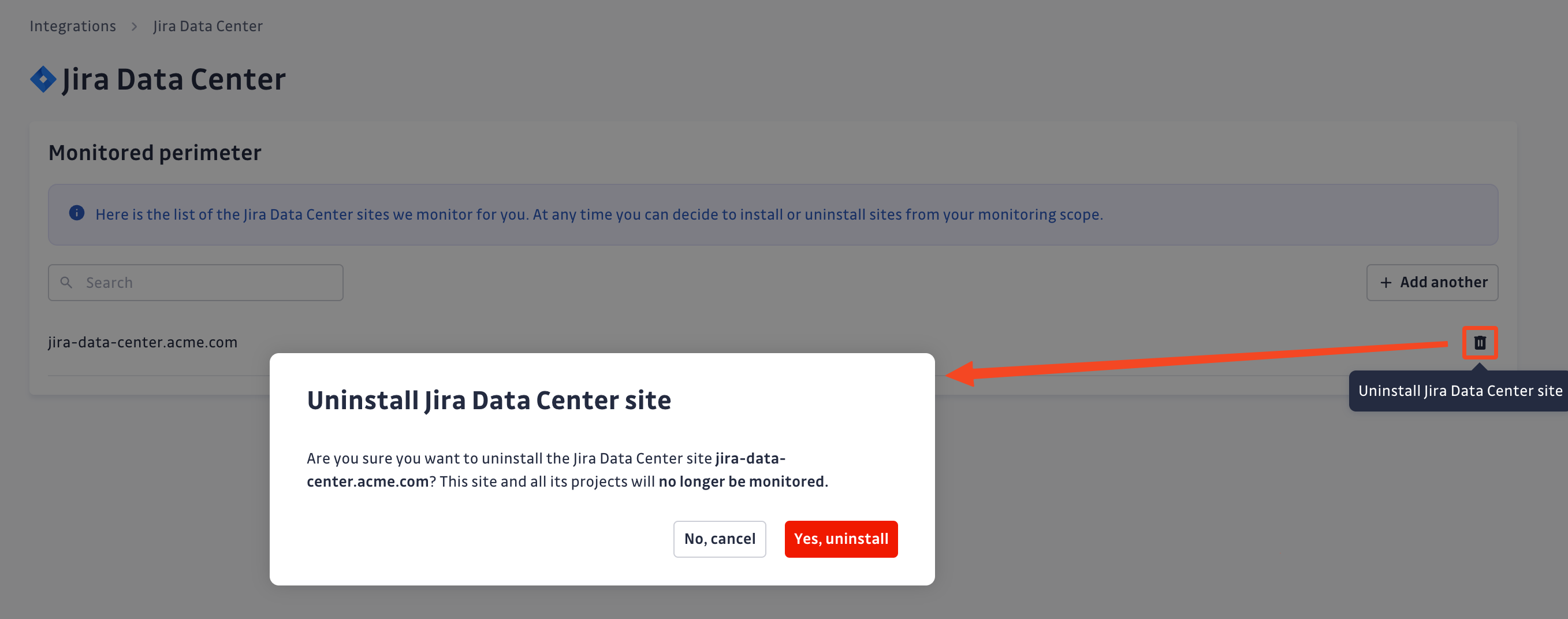
That's it! Your Jira Data Center site is now uninstalled.
Privacy and compliance
Data handling
GitGuardian processes your data solely to detect exposed secrets:
- Read-only access: We never require write access unless scoped to creating webhooks to receive and process real-time events
- Minimal data retention: We store only data and metadata necessary for incident management
- Encryption: All data in transit and at rest is encrypted
- Compliance: We follow the same data protection standards as our other integrations
Regional considerations
GitGuardian hosts its services in two AWS regions: eu-central-1 (Frankfurt) and us-west-2 (Oregon). Ensure your GitGuardian deployment region aligns with your data residency requirements. Contact support if you need guidance on compliance with local regulations.
User notification
Country-specific laws and regulations may require you to inform your Jira Data Center users that your projects are being scanned for secrets. Here is a suggestion for a message you may want to use:
As part of our internal information security process, the company scans the Jira Data Center projects for potential secrets leaks using GitGuardian. All data collected will be processed for the purpose of detecting potential leaks. To find out more about how we manage your personal data and to exercise your rights, please refer to our employee/partner privacy notice.
Please note that only projects relating to the company's activity and business may be monitored and that users shall refrain from sharing personal or sensitive data not relevant to the project's purpose.

