Integrate Google Artifact Registry
Secure your containerized applications by monitoring Google Artifact Registry for exposed secrets in container images and build artifacts.
Why Monitor Google Artifact Registry?
Google Artifact Registry is the central hub for your containerized applications running on Google Cloud Platform. Container images stored here typically contain service account keys, Cloud SQL credentials, and API tokens that grant access to Google Cloud services, making any secret exposure a direct pathway to compromising your entire GCP infrastructure.
Capabilities
| Feature | Support | Details |
|---|---|---|
| Historical Scanning | ✅ (Supported) | Analyze existing images and their layers |
| Incremental Scanning | ✅ (Supported) | Regular scheduled scanning for new content |
| Monitored Perimeter | ✅ (Supported) | Granular monitoring of your repos |
| Team Perimeter | ✅ (Supported) | Team-based access control |
| Presence Check | ❌ (Not Supported) | All occurrences considered present |
| Source Visibility | ❌ (Not Supported) | All sources are considered as private |
| File Attachments | N/A | Not applicable for container registries |
What we scan:
- All container image layers
- Dockerfiles and build configurations
- Environment variables in image metadata
This integration automatically scans your monitored repositories, downloading artifacts which may incur bandwidth costs. To optimize costs and reduce false positives, carefully select the sources to monitor and use our filepath exclusion feature.
Plan requirements: Available for GitGuardian Enterprise plan. Try it for free with a 30-day trial - any detected incidents remain accessible after the trial ends.
Detector coverage: To minimize false positives, Generic High Entropy Secret and Generic Password are disabled. All other detectors are enabled.
Setup your Google Artifact Registry integration
GitGuardian integrates with Google Artifact Registry via a Service Account with read-only access to your repositories. You can install GitGuardian on multiple Google Artifact Registry instances to monitor your repositories.
There are two ways for GitGuardian to authenticate as this service account. Choose one when you install the integration:
| Option 1: Service account key | Option 2: Keyless with Workload Identity | |
|---|---|---|
| What GitGuardian stores | A JSON key of the service account | No secret: only the service account email and the IDs of the pool and the provider |
| Secret rotation | You rotate the key yourself | Nothing to rotate: Google issues tokens that expire after one hour |
| What GitGuardian monitors | The repositories of every project that the service account reads | The repositories under the scopes that you declare: projects, folders or a whole organization |
| Setup | A few steps in the Google Cloud console | A few gcloud commands |
| Self-Hosted | Always available | Requires an instance that Google can reach over the internet |
Option 1 is the quickest to set up. Option 2 is the recommended one: no long-lived secret leaves your Google Cloud organization, and a folder or organization scope covers projects that you create later.
Option 1: Connect with a service account key
Prerequisites:
- Owner or Manager account on your GitGuardian Dashboard
- Google Cloud admin permissions to create Service Accounts in your GCP project
-
Make sure you're logged as an administrator in your Google Cloud Console
-
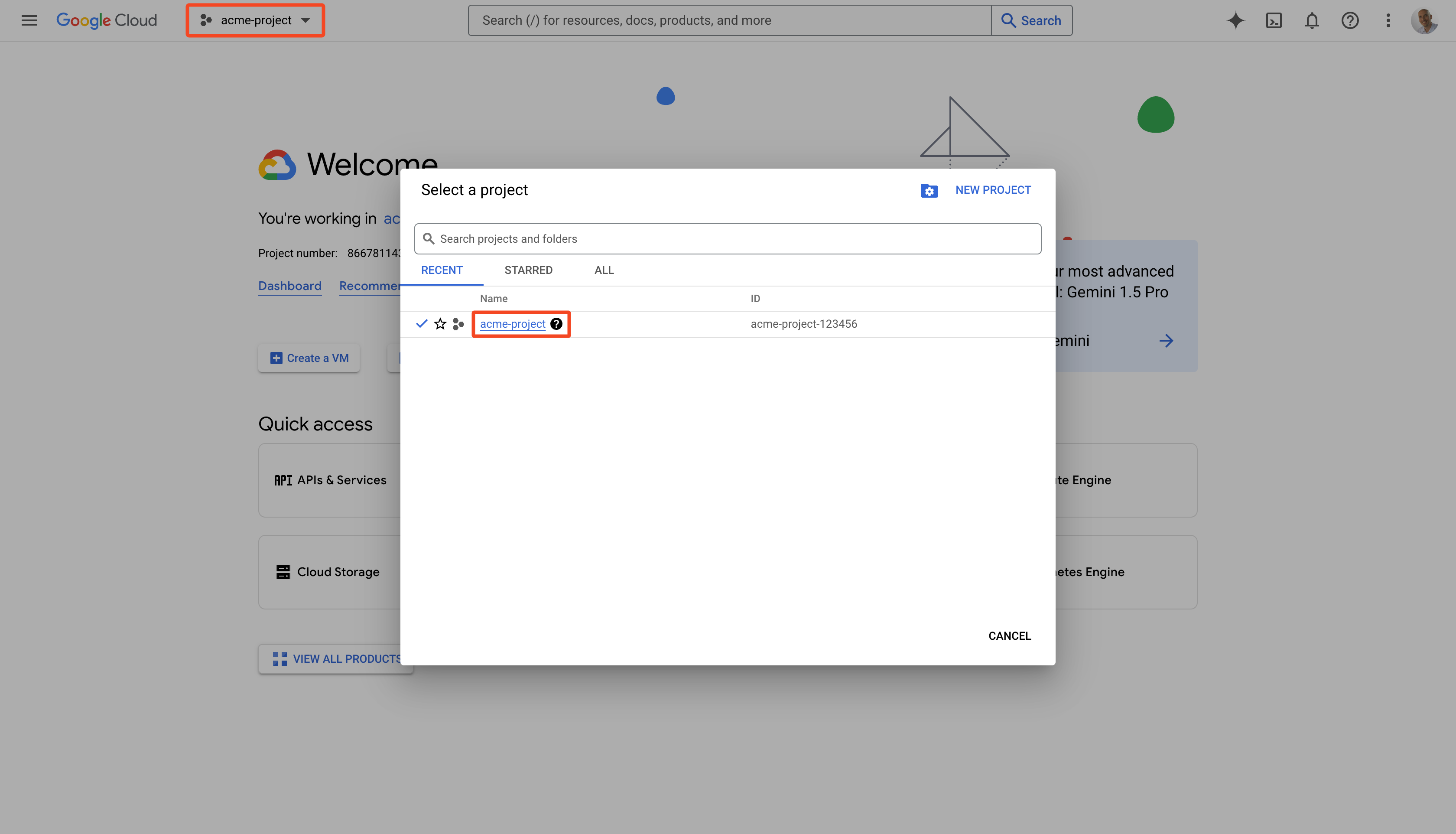
Click Select a project and select the project you want to integrate
-
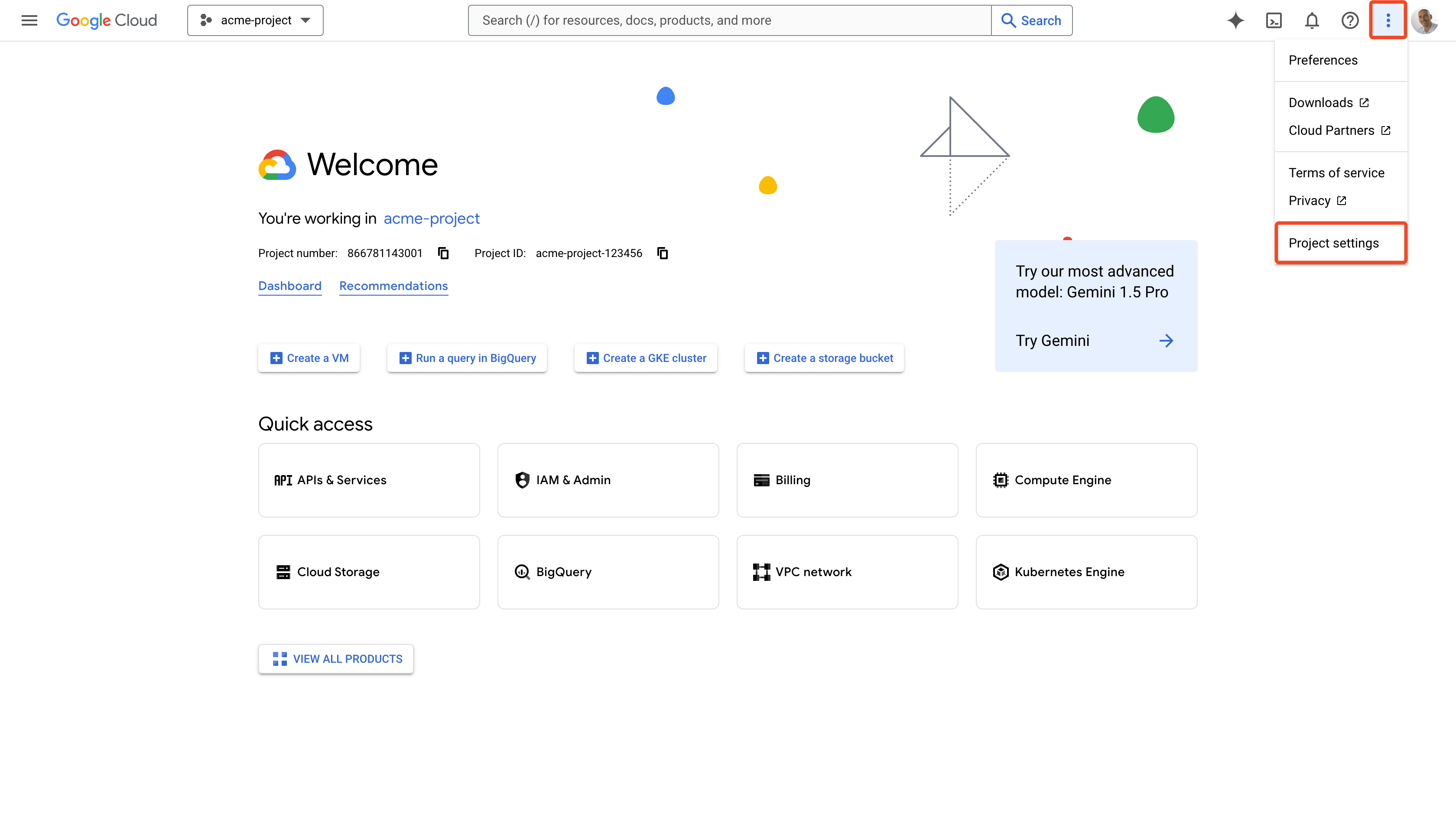
Open the
 menu and go to the Project settings
-
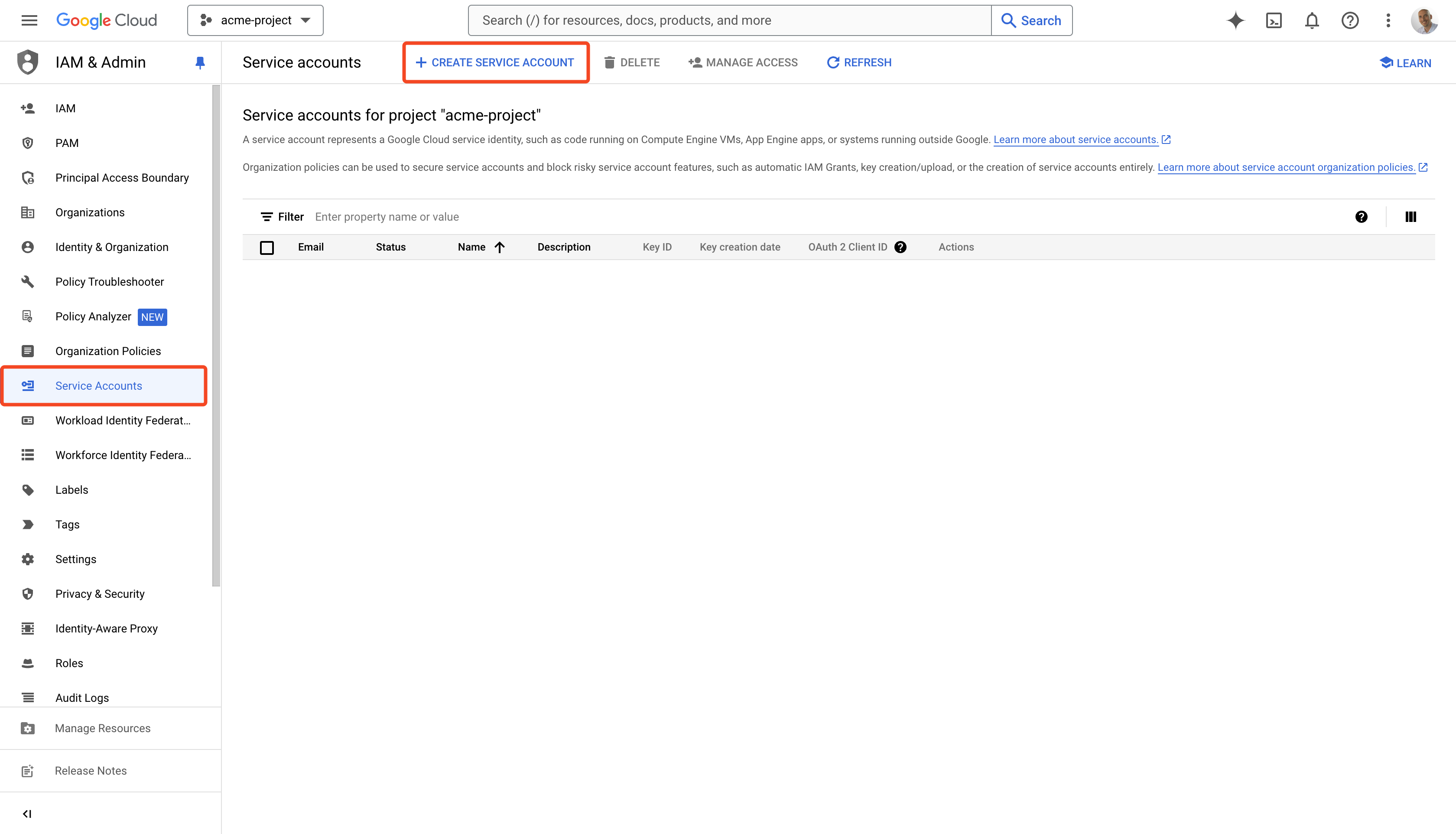
Go to the Service Accounts section
-
Click CREATE SERVICE ACCOUNT
-
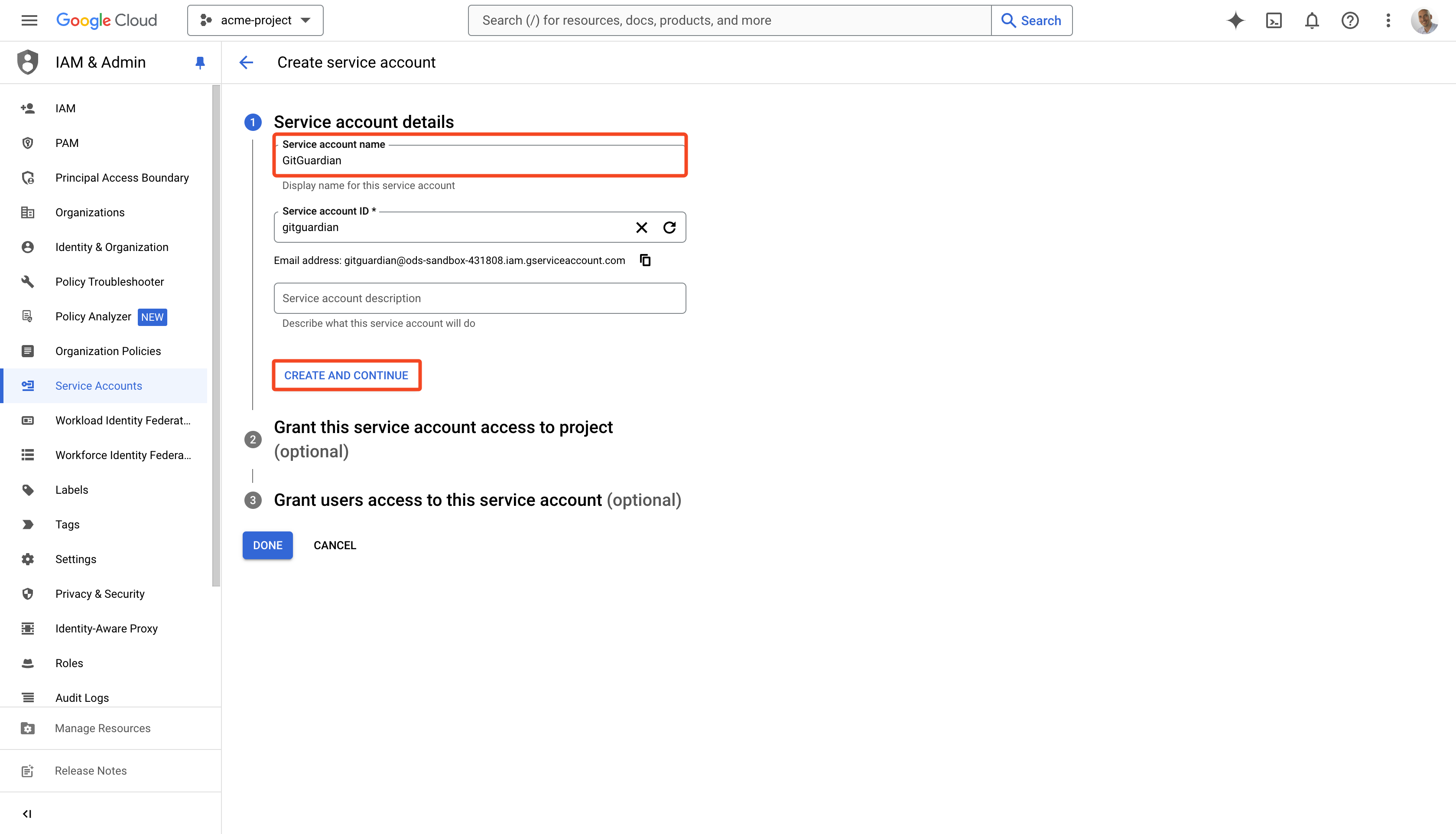
Type a Service account name and click CREATE AND CONTINUE
-
Select
Artifact Registry Readeras a role and click CONTINUE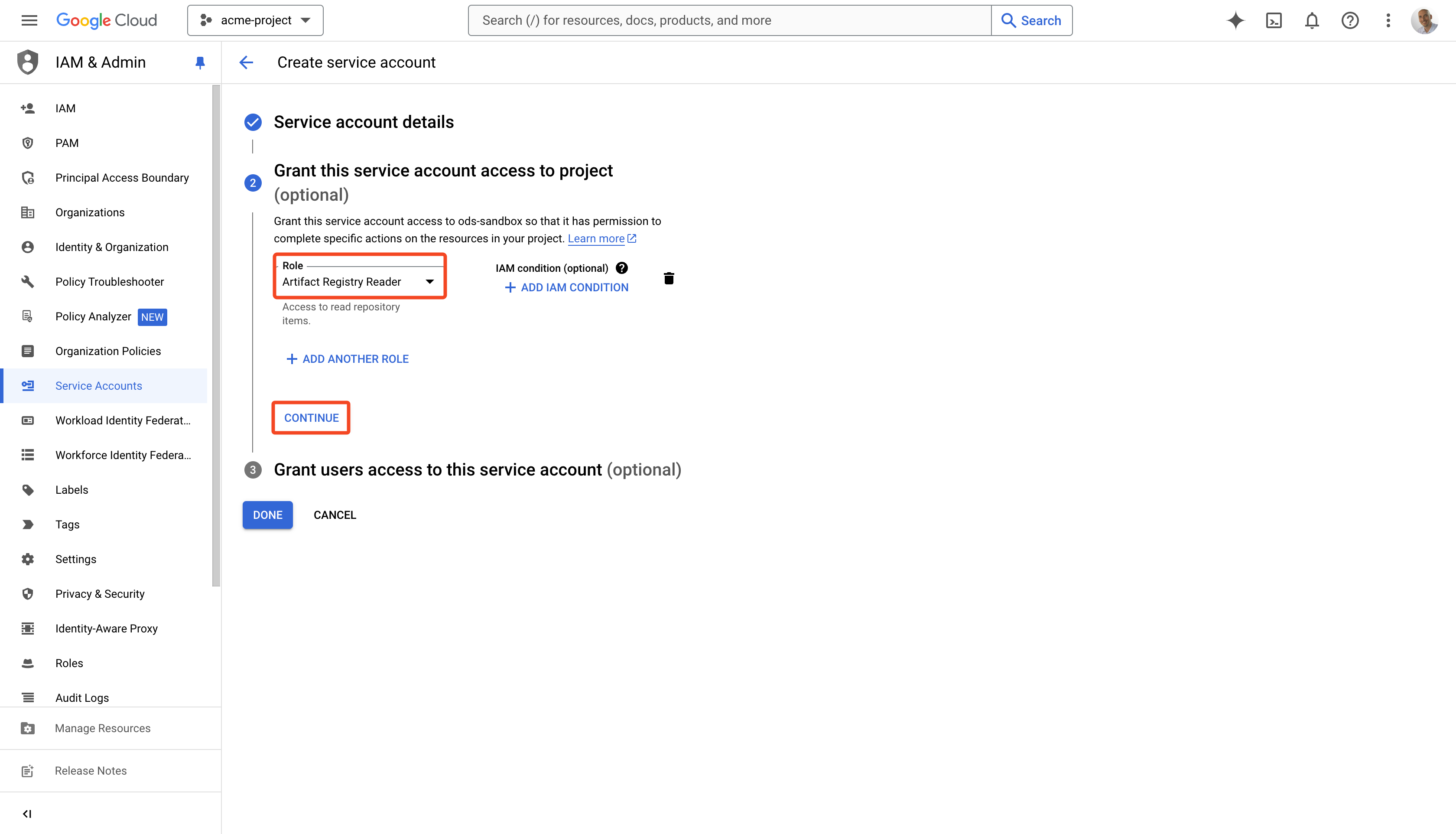
-
You can skip the 3rd step and click DONE
-
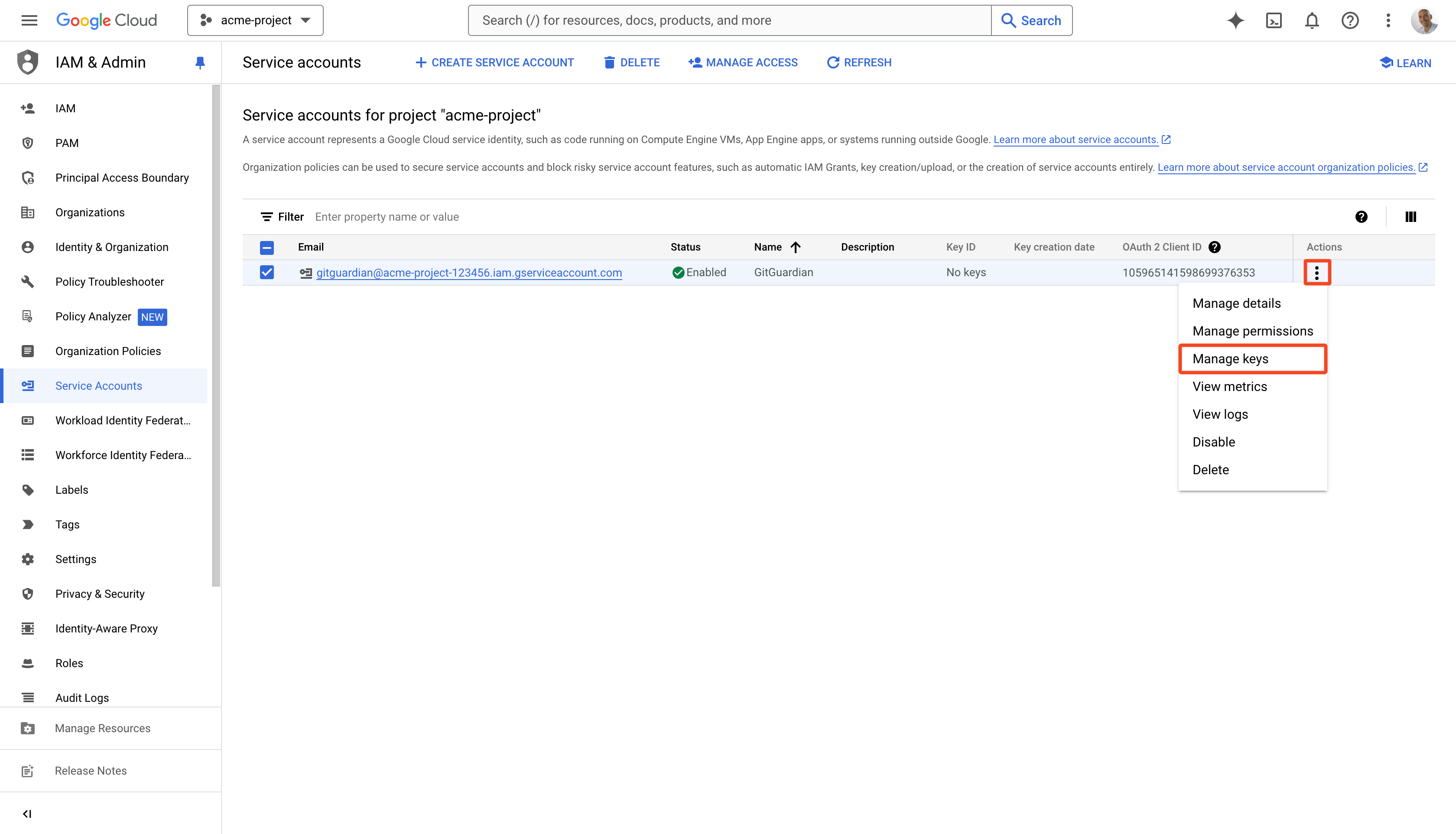
Click the
menu next to the new service account and select Manage keys
-
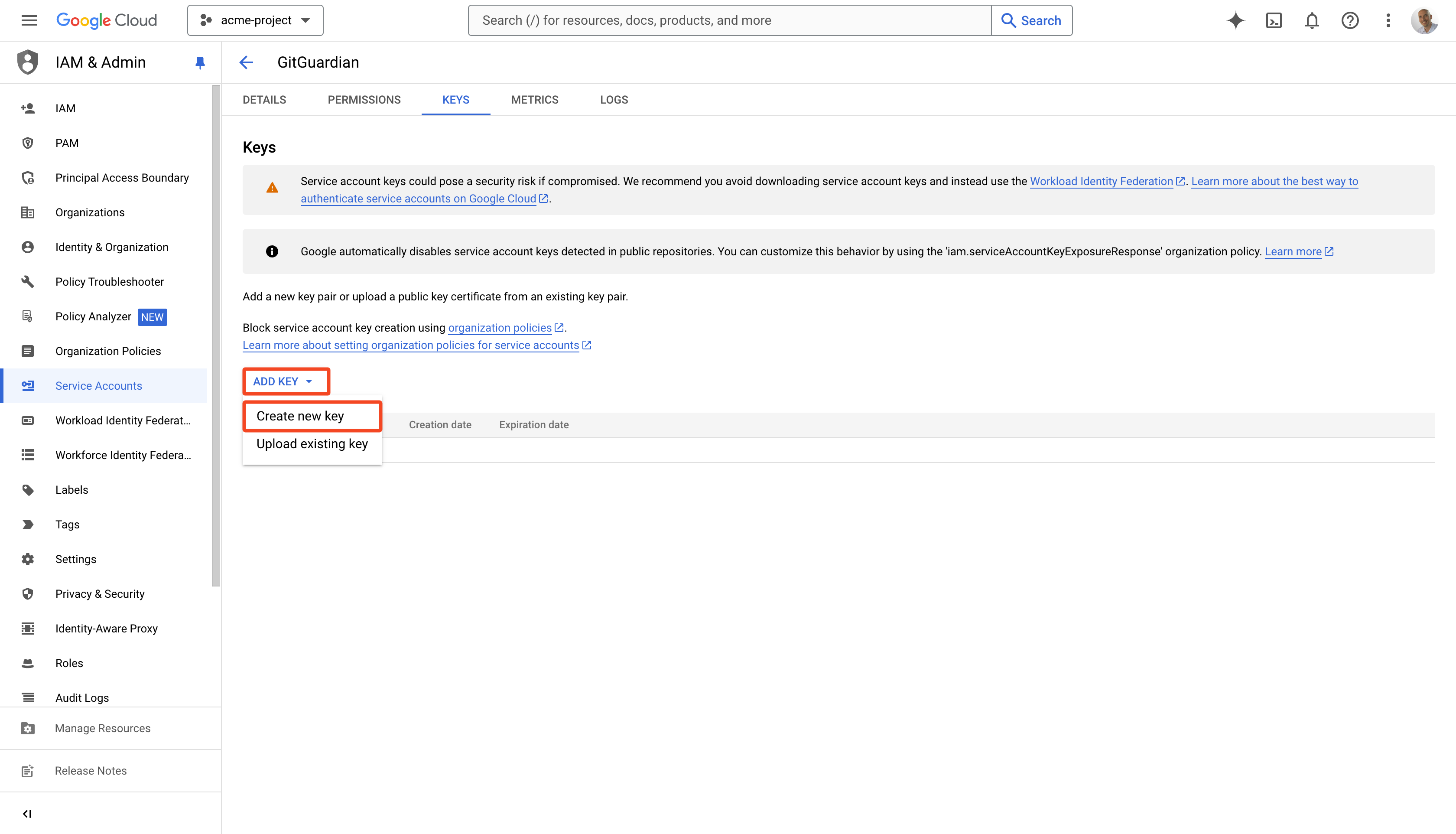
Click the ADD KEY menu and select Create new key
-
Select JSON as a key type and click CREATE
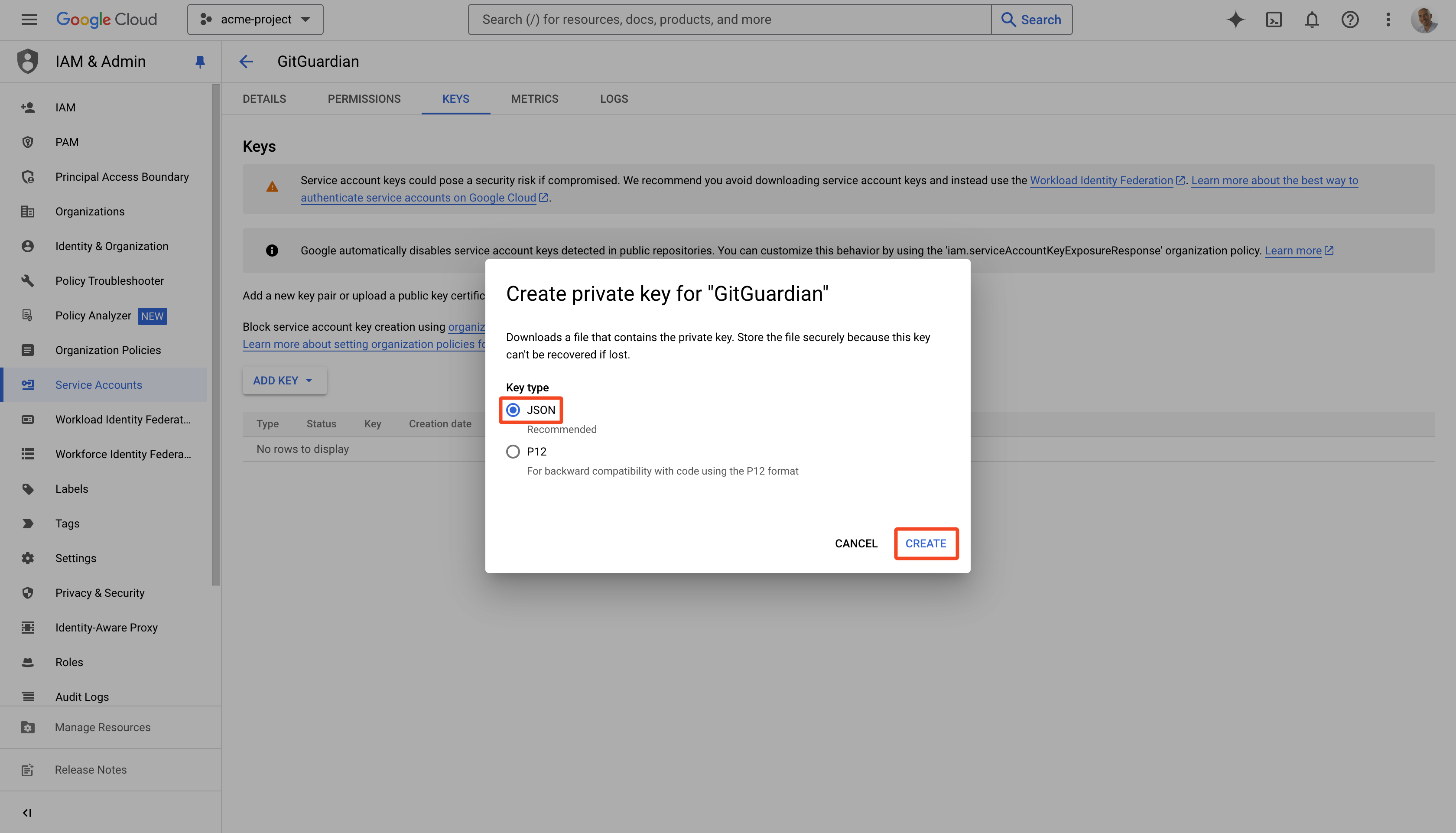 This will create your new key and download it locally in a JSON file
 -
In the GitGuardian platform, navigate to the Sources integration page
-
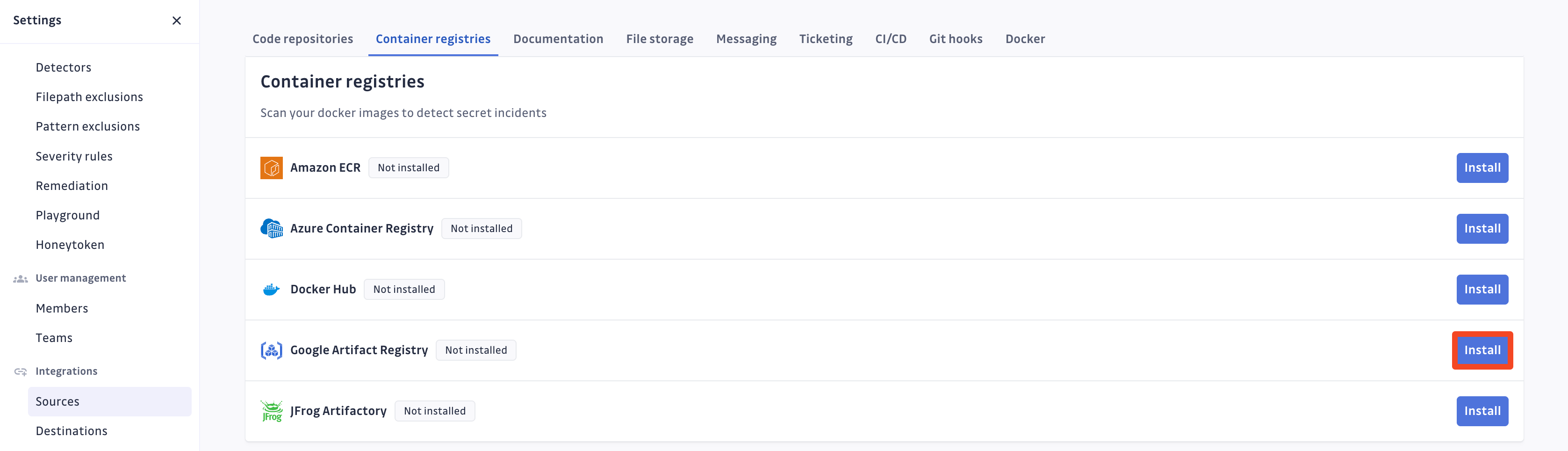
Click Install next to Google Artifact Registry in the Container registries section
-
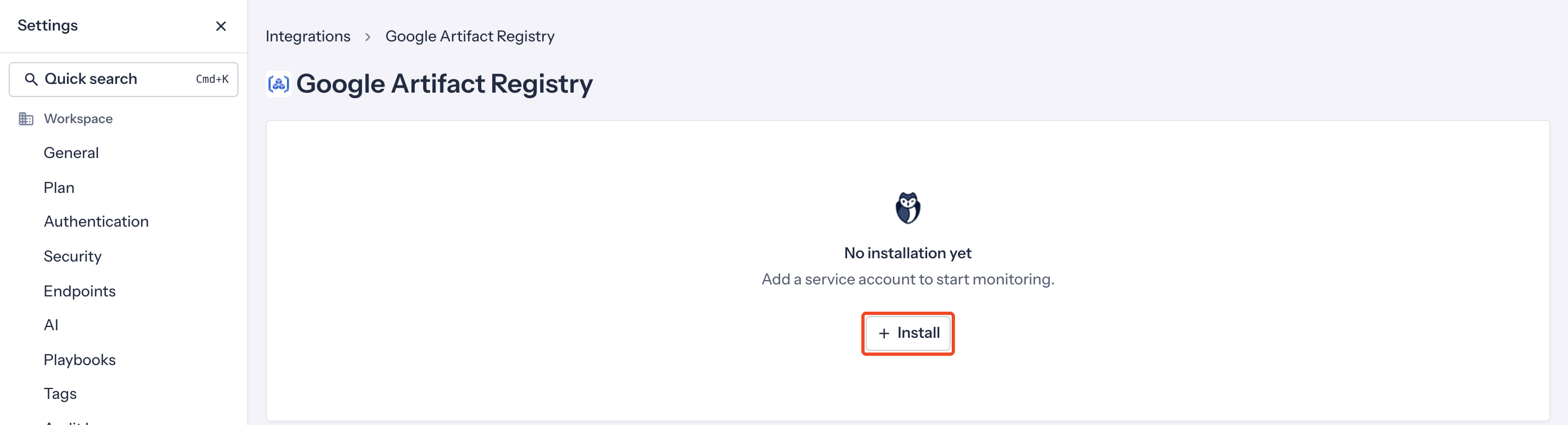
On the Google Artifact Registry integration page, click Install
-
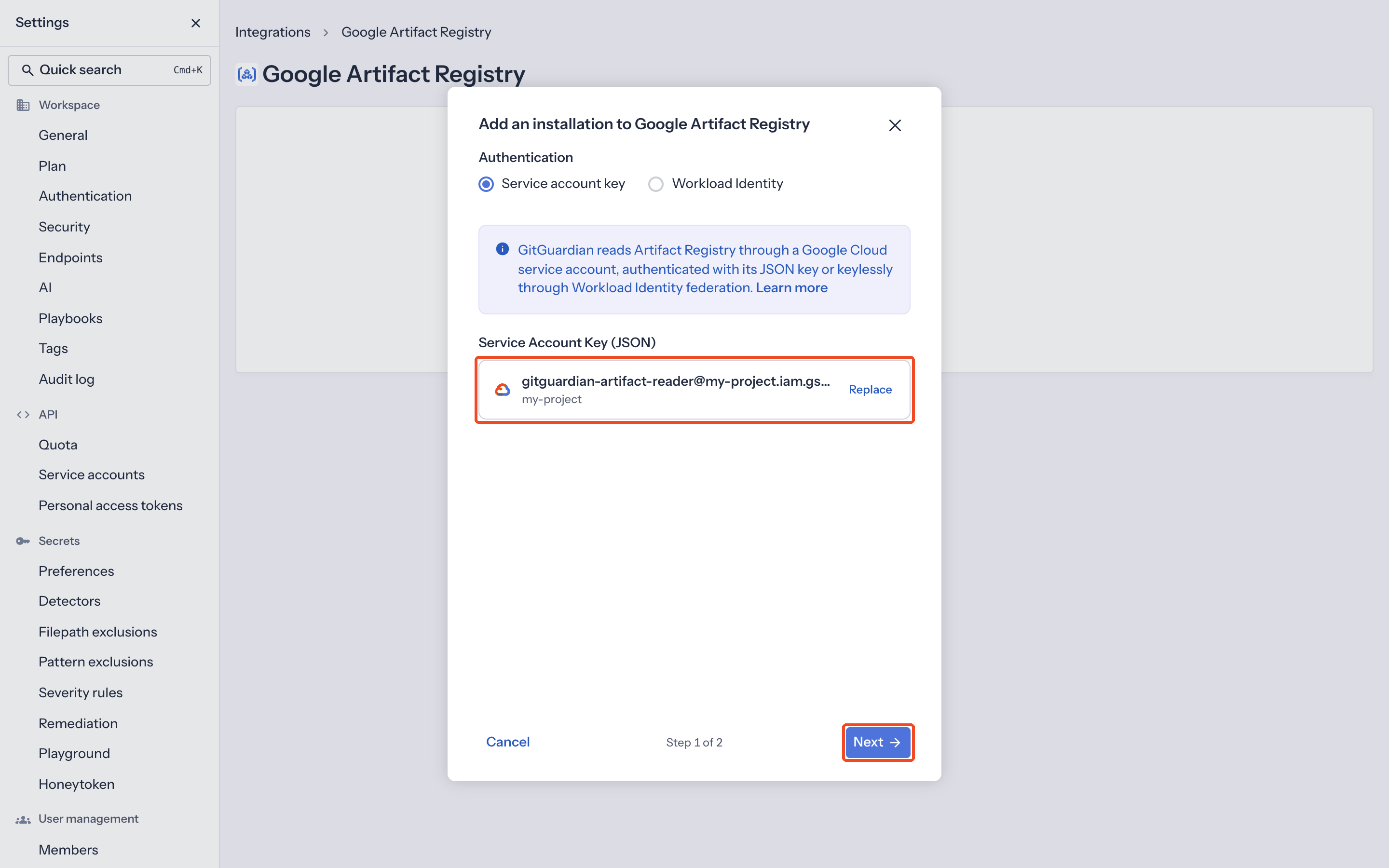
In Authentication, select Service account key
If your repositories are stored in a multi-region location, type the multi-region name instead:
us,europe, orasia. -
Paste the content of your JSON key file in Service Account Key (JSON). GitGuardian shows the service account email and the project of the key.
-
Click Next. GitGuardian checks the key.
-
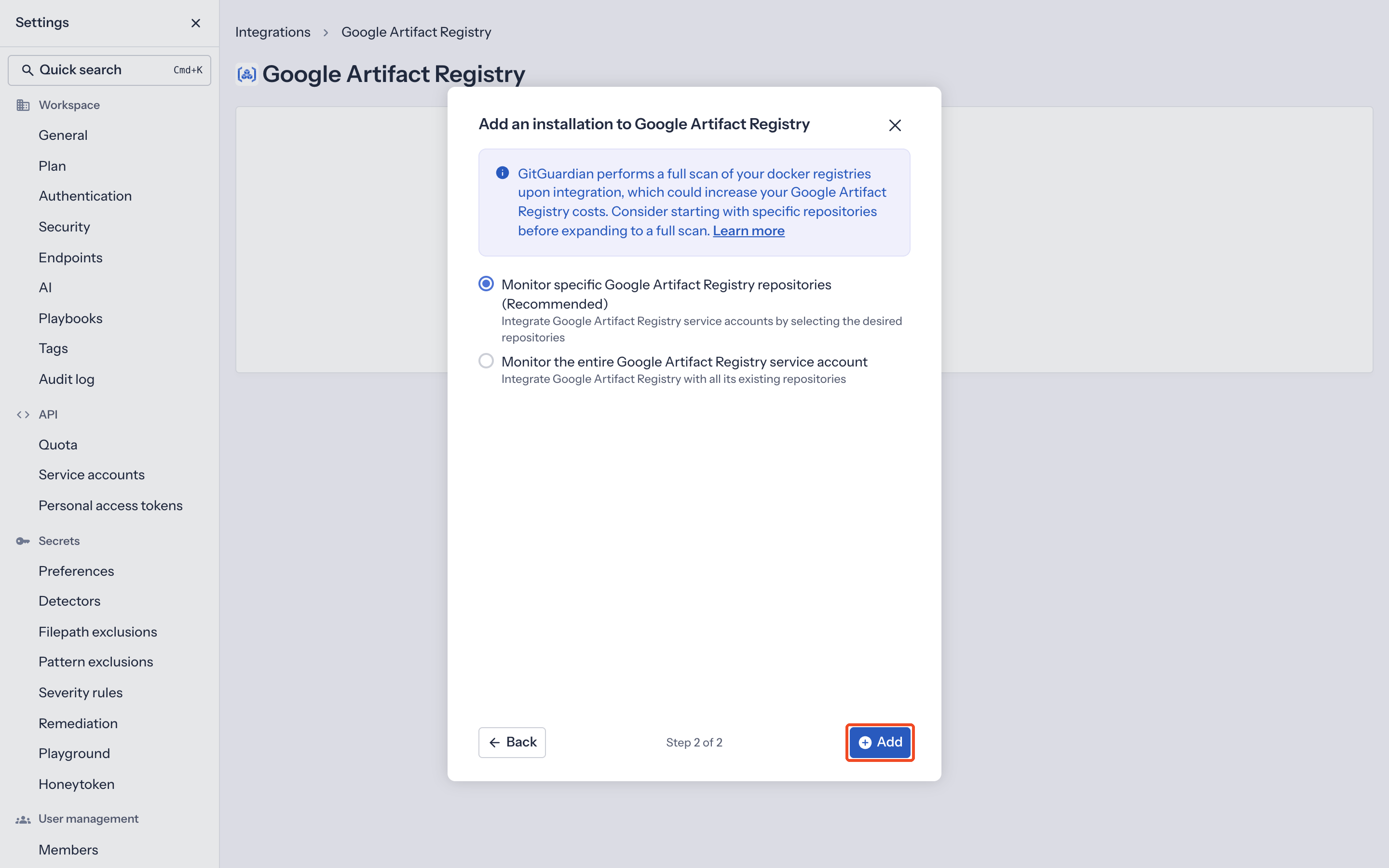
Customize your monitored perimeter:
- Monitor specific Google Artifact Registry repositories (Recommended)
- No repositories are monitored by default, you will have to select them manually.
- Newly created repositories will not be monitored by default. You can adjust this setting at any time.
- Recommended to optimize your bandwidth costs.
- Monitor the entire Google Artifact Registry service account
- GitGuardian monitors every repository that the service account can read: with a key, the repositories of every project that it can read; with Workload Identity, the repositories under the scopes of the installation.
- All repositories are monitored by default with a full historical scan automatically triggered.
- Newly created repositories will be monitored by default. You can adjust this setting at any time.
- Monitor specific Google Artifact Registry repositories (Recommended)
-
Click Add
That's it! Your Google Artifact Registry instance is now installed, and GitGuardian is monitoring all Docker images of your selected repositories for secrets.
Option 2: Connect keyless with Workload Identity
With Workload Identity federation, GitGuardian reads Artifact Registry through a service account that has no key. GitGuardian signs a short-lived token, Google exchanges it for a temporary access token, and you never store or rotate a long-lived secret.
Before you begin
Prerequisites:
- Owner or Manager account on your GitGuardian Dashboard
- The
gcloudCLI, authenticated withgcloud auth login - A Google Cloud user with IAM rights on the project that holds the pool: Workload Identity Pool Admin (
roles/iam.workloadIdentityPoolAdmin), Service Account Admin (roles/iam.serviceAccountAdmin) and Project IAM Admin (roles/resourcemanager.projectIamAdmin) - To grant roles on a folder or an organization: Folder IAM Admin (
roles/resourcemanager.folderIamAdmin) on the folder, or Organization Administrator (roles/resourcemanager.organizationAdmin) on the organization
The pool and the service account can live in a project that holds no repository. This project does not need Artifact Registry. We recommend a dedicated project, so that the trust in GitGuardian stays separate from your workloads.
In the GitGuardian platform, go to Settings > Integrations > Google Artifact Registry, click Install and select Workload Identity. The modal shows two values for your workspace: the Issuer URI and the Subject. Copy them.
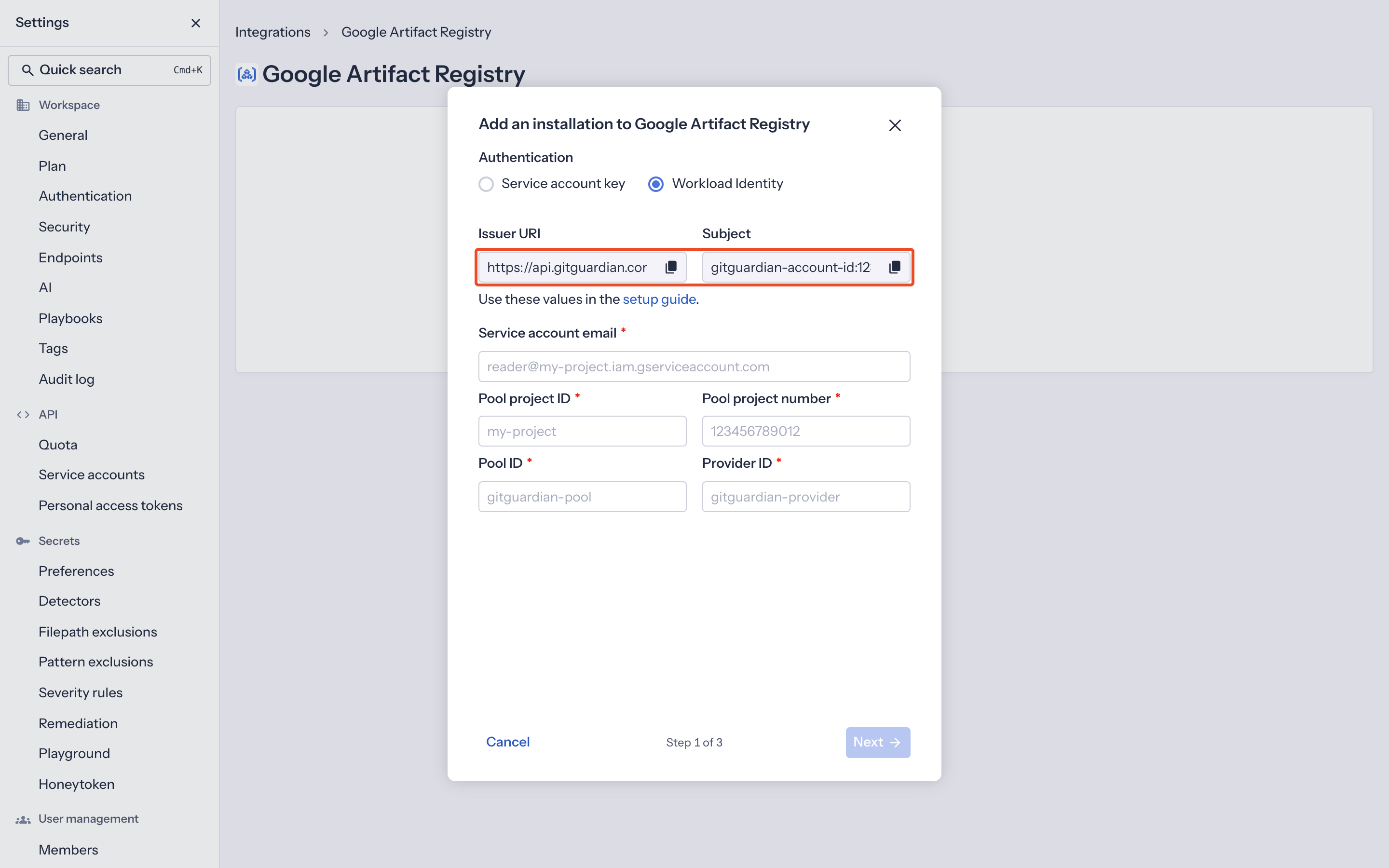
In a terminal, set the variables that the commands below use. gitguardian-pool and gitguardian-provider are suggested names. You can choose other names: you type them in the form later.
export PROJECT_ID="<project-that-holds-the-pool>"
export PROJECT_NUMBER="$(gcloud projects describe "$PROJECT_ID" --format='value(projectNumber)')"
export POOL_ID="gitguardian-pool"
export PROVIDER_ID="gitguardian-provider"
export ISSUER_URI="<Issuer URI shown in GitGuardian>"
export GG_SUBJECT="<Subject shown in GitGuardian>"
export SA_NAME="gitguardian-artifact-reader"
export SA_EMAIL="${SA_NAME}@${PROJECT_ID}.iam.gserviceaccount.com"
Choose the scopes
A scope is a node of your Google Cloud hierarchy that GitGuardian monitors: a project, a folder or an organization. GitGuardian uses Cloud Asset Inventory to find every Artifact Registry repository under each scope, in all the regions, with one request per scope. You can declare several scopes on one installation.
Pick the level that matches how your projects are organized:
- Project: GitGuardian monitors the repositories of this project only.
- Folder: GitGuardian monitors the repositories of every project in the folder and in its sub-folders, including projects that you create later.
- Organization: GitGuardian monitors the repositories of every project of the organization, including projects that you create later.
The project that holds the pool is not a scope, unless it also holds repositories that you want to monitor.
On each scope, the service account needs two roles:
| Role | Why |
|---|---|
Cloud Asset Viewer (roles/cloudasset.viewer) | Find the repositories under the scope |
Artifact Registry Reader (roles/artifactregistry.reader) | Read the images of the repositories that it finds |
You grant these roles in the last step below.
Create the Google Cloud resources
-
Enable the required APIs on the project that holds the pool:
gcloud services enable \iam.googleapis.com \sts.googleapis.com \iamcredentials.googleapis.com \cloudasset.googleapis.com \--project="$PROJECT_ID"Google bills the Cloud Asset Inventory requests to the project of the service account, so the API must be enabled there. It does not need to be enabled in the projects that you scan. Artifact Registry must be enabled in the projects that hold your repositories, which is already the case if you use it.
-
Create the workload identity pool:
gcloud iam workload-identity-pools create "$POOL_ID" \--project="$PROJECT_ID" \--location="global" \--display-name="GitGuardian" -
Create the OIDC provider that trusts the GitGuardian issuer:
gcloud iam workload-identity-pools providers create-oidc "$PROVIDER_ID" \--project="$PROJECT_ID" \--location="global" \--workload-identity-pool="$POOL_ID" \--issuer-uri="$ISSUER_URI" \--attribute-mapping="google.subject=assertion.sub"Google fetches the issuer's discovery document and signing keys itself.
-
Create the service account:
gcloud iam service-accounts create "$SA_NAME" \--project="$PROJECT_ID" \--display-name="GitGuardian Artifact Registry reader"Do not create a key for this service account: GitGuardian never needs one.
-
Allow GitGuardian to impersonate the service account:
gcloud iam service-accounts add-iam-policy-binding "$SA_EMAIL" \--project="$PROJECT_ID" \--role="roles/iam.workloadIdentityUser" \--member="principal://iam.googleapis.com/projects/${PROJECT_NUMBER}/locations/global/workloadIdentityPools/${POOL_ID}/subject/${GG_SUBJECT}"The binding is on your subject, so only your GitGuardian workspace can use this service account.
-
Grant the two roles on each scope that GitGuardian must monitor. Run the command that matches the level of the scope:
# A projectfor ROLE in roles/cloudasset.viewer roles/artifactregistry.reader; dogcloud projects add-iam-policy-binding "<scope-project-id>" \--member="serviceAccount:${SA_EMAIL}" --role="$ROLE"done# A folderfor ROLE in roles/cloudasset.viewer roles/artifactregistry.reader; dogcloud resource-manager folders add-iam-policy-binding "<folder-id>" \--member="serviceAccount:${SA_EMAIL}" --role="$ROLE"done# An organizationfor ROLE in roles/cloudasset.viewer roles/artifactregistry.reader; dogcloud organizations add-iam-policy-binding "<organization-id>" \--member="serviceAccount:${SA_EMAIL}" --role="$ROLE"doneTo find the ID of a folder, run
gcloud resource-manager folders list --folder=<parent-folder-id>or--organization=<organization-id>. IAM changes can take a few minutes to apply.
Enter the values in GitGuardian
-
Back in the install modal, fill in the fields:
Field Value Service account email $SA_EMAILPool project ID $PROJECT_ID. GitGuardian fills it from the service account email.Pool project number $PROJECT_NUMBERPool ID $POOL_IDProvider ID $PROVIDER_ID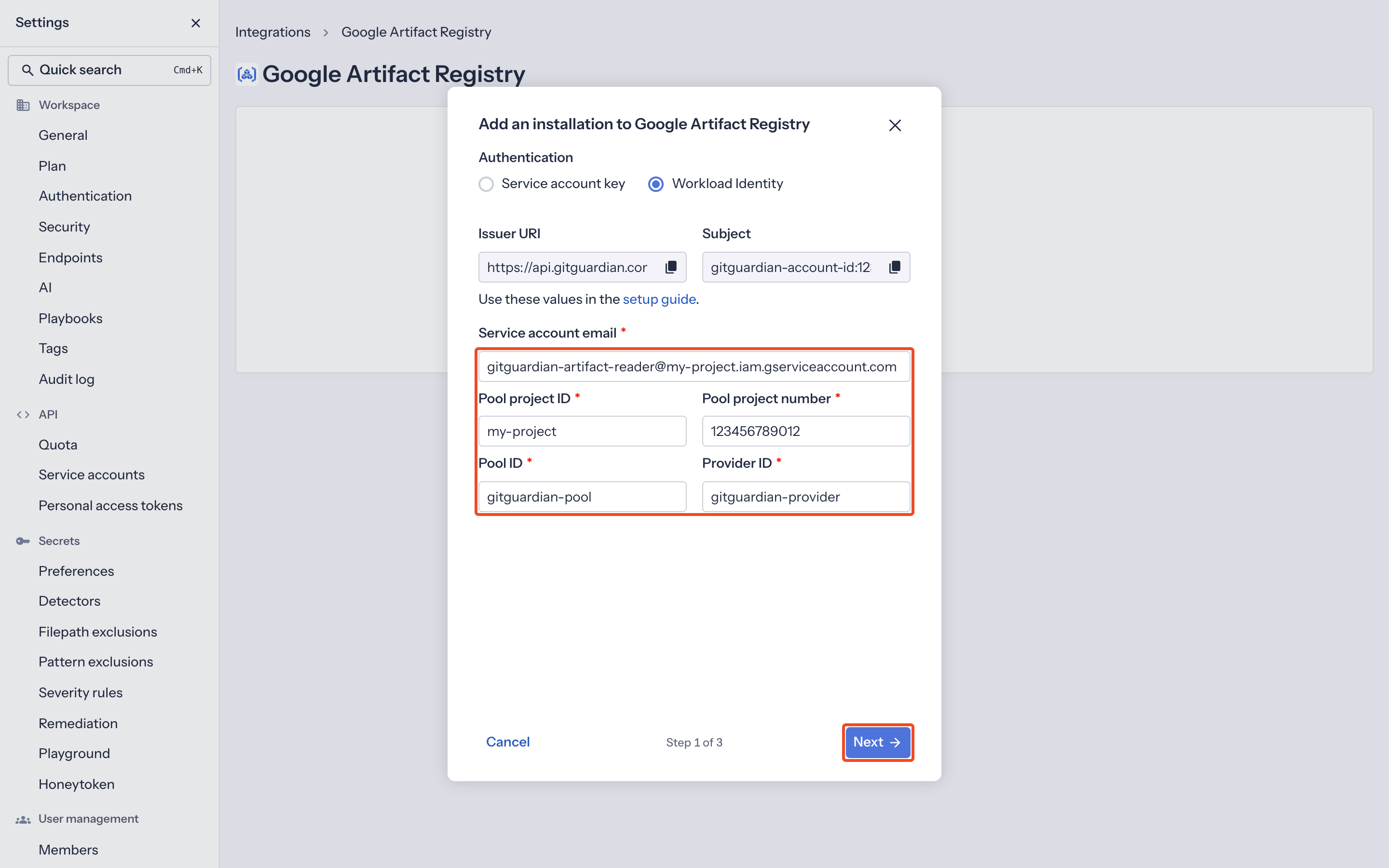
-
Click Next.
-
In Scopes, add each project, folder or organization where you granted the two roles. First select the Scope level, then type the Scope ID and click Add:
- Project: the project ID, for example
my-project - Folder: the numeric folder ID, for example
271586109710 - Organization: the numeric organization ID
Select the level before you type the ID: a folder ID entered as a project does not match anything. When two scopes overlap, for example an organization and a folder in it, GitGuardian monitors each repository once.
- Project: the project ID, for example
-
Click Next. GitGuardian checks the connection: it exchanges its token, impersonates the service account and searches the scopes.
-
Customize your monitored perimeter as in the service account key setup and click Add.
Change the scopes of an installation
- On the Google Artifact Registry integration page, click Manage scopes on the row of the installation.
- Add or remove scopes, then click Save.
- If GitGuardian asks for a one-time code, type the code that you receive by email. A scope changes what GitGuardian reads, so it asks for the same confirmation as an installation. After the code, open Manage scopes again and save your changes again.
Before you add a scope, grant the two roles on it. GitGuardian finds the repositories of a new scope at the next synchronization.
Troubleshooting
| Message in GitGuardian | What to check |
|---|---|
| GitGuardian could not federate through this workload identity provider | The issuer, the subject, the pool, the provider and the roles/iam.workloadIdentityUser binding. See the points below. |
This service account cannot search <scope> | roles/cloudasset.viewer on the scope that the message names, the Cloud Asset API on the project of the service account, and the level and ID of that scope. Google answers the same way for a scope that does not exist. GitGuardian stops at the first scope that fails: fix it, then check again to test the next scopes. |
If GitGuardian cannot connect, check these points:
- Issuer: the provider's
--issuer-urimust match the Issuer URI shown in GitGuardian exactly. - Subject: the subject at the end of the
--memberin step 5 must match the Subject shown in GitGuardian exactly. - Pool ID already in use: Google soft-deletes pools and keeps their ID reserved for 30 days. When you retry after a deletion, pick a new
POOL_IDand type it in the form. - Repositories found but not scanned: the service account has
roles/cloudasset.viewerbut notroles/artifactregistry.readeron the project of the repository. - A scope loses its grants: the synchronization of the installation stops. Restore the two roles on the scope, or remove the scope in Manage scopes.
Customize your monitored perimeter
To customize the monitored repositories, navigate to your Google Artifact Registry settings.
- Select/Unselect repositories to include or exclude them from monitoring
- Confirm by clicking Update monitored perimeter

Automatic repository monitoring
You can enable or disable the automatic addition of newly created repositories to your monitored perimeter by switching the option in your Google Artifact Registry settings.

Uninstall your Google Artifact Registry instance
To uninstall a Google Artifact Registry instance:
- In the GitGuardian platform, navigate to the Sources integration page
- Click Edit next to Google Artifact Registry in the Container registries section
- Click the bin icon next to the Google Artifact Registry instance to uninstall
- Confirm by clicking Yes, uninstall in the confirmation modal
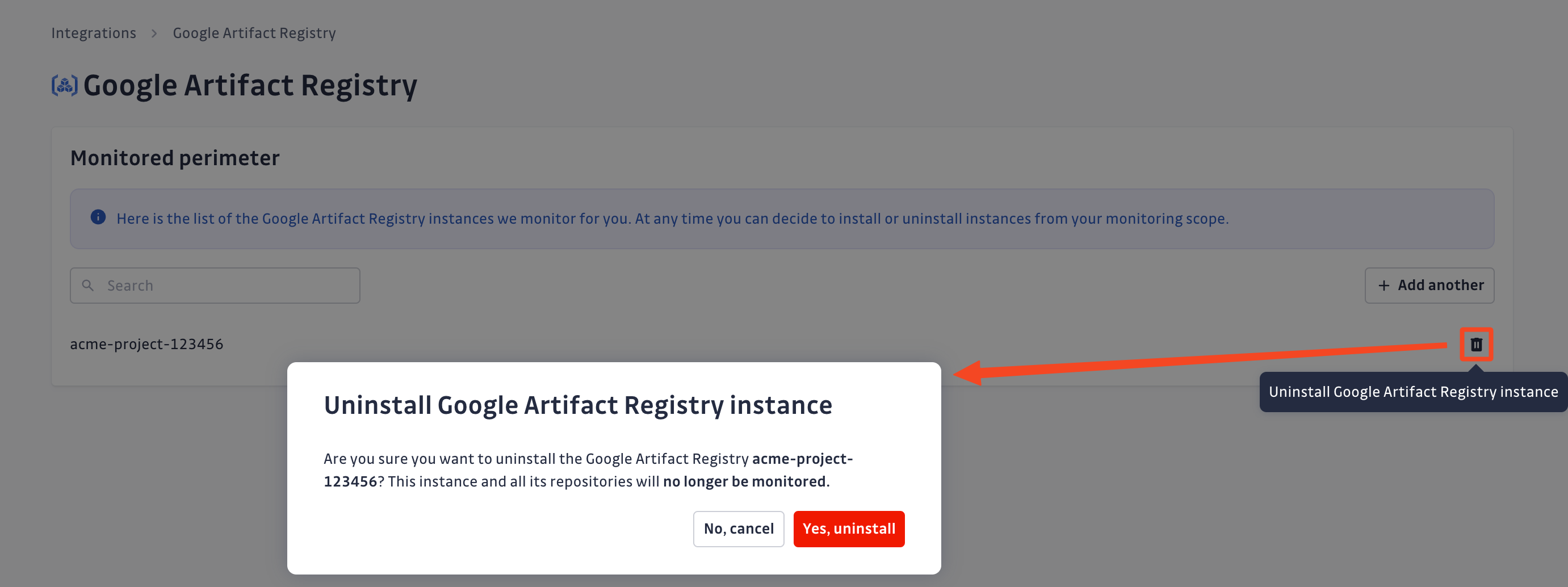
That's it! Your Google Artifact Registry instance is now uninstalled.
Excluded paths
GitGuardian automatically excludes files from scanning if their paths contain any of these regular expressions:
/__pypackages__/
/\.venv/
/\.tox/
/site-packages/
/venv/
distutils/command/register\.py
python.*/awscli/examples/
python.*/dulwich/(tests|contrib/test_)
python.*/hgext/bugzilla\.py
python.*/mercurial/util\.py
python.*/test/certdata/
python.*/urllib/request\.py
python.*/pygments/lexers/
/cryptography.+/tests/.+(fixtures|test)_.+\.py
/python.+pygpgme.+/tests/
botocore/data/.+/(examples|service)-.+\.json
usr(/local)?/lib/python.+/dist-packages
/libevent.+/info/test/test/
/conda-.+-py.+/info/test/tests.+/test_.+\.py
/python[^/]+/test/
/man/man5/kdc\.conf\.5
erlang.*(inets|ssl).*/examples/
/gems/.*httpclient.*/(test|sample)/
/gems/.*faraday.*/
/vendor/bundle/
/\.gem/
ruby-[^/]+/test/openssl/
/(g|G)o/src/cmd/go/internal/.*_test\.go
/(g|G)o/src/cmd/go/internal/.*/testdata/
/(g|G)o/src/cmd/go/testdata/
/(g|G)o/src/crypto/x509/platform_root_key\.pem
/(G|g)o/src/crypto/(tls|x509)/.*_test\.go
/(g|G)o/src/net/(url|http)/.*_test\.go
src/github.com/DataDog/datadog-agent/.*test.*\.go
google/internal/.*_test\.go
golang.org.*oauth2@.*/.*\.go
/flutter/.*/packages/flutter_tools/test/data/
/flutter/.*/examples/image_list/lib
/\.pub-cache
etc/ssl/private/ssl-cert-snakeoil\.key
perl.*Cwd\.pm
ansible/.*/tests/(integration|unit)/
ansible/.*/test/awx
ansible/collections/ansible_collections/.*/plugins/
/curl/.*/(tests|docs|lib/url\.c)
/doc/wget.+/NEWS
dist/awscli/examples/
usr(/local)?/lib/aws-cli/examples/
/google-cloud-sdk/(lib|platform)/
\.git/modules/third[-_]?party/
\.git/modules/external/
/\.npm/_cacache
/node_modules/
/\.parcel-cache/
/\.yarn/cache/
/\.m2/
/\.ivy2/cache/
/\.mix/
/\.hex/
/composer/cache/
/\.nuget/packages/
/libgpg-error/errorref\.txt
/Homebrew/Library/Taps/
/tcl[^/]+/http-.+\.tm
/tcl[^/]+/[^/]+/http-.+\.tm
usr/share/lua/[^/]+/posix/init\.lua
openssl/openssl-[^/]+/test/recipes/
usr/share/doc/libssl-doc/demos/
boringssl/src/third_party/[^/]+test[^/]+/[^/]+_test\.json
Additional Self-Hosted considerations
To use Workload Identity, Google must reach the Issuer URI of your instance over the internet: it reads the discovery document and the signing keys there. If your instance is not reachable from the internet, use a service account key.
For GitGuardian Self-Hosted instances, scan frequency can be configured in the Admin Area:
- Time interval unit: seconds
- Default value: 86400 (1 day)
- Minimum value: 1800 (30 minutes)
Privacy
Country-specific laws and regulations may require you to inform your users that your repositories are being scanned for secrets. Here is a suggestion for a message you may want to use:
As part of our internal information security process, the company scans its repositories for potential secrets leaks using GitGuardian. All data collected will be processed for the purpose of detecting potential leaks. To find out more about how we manage your personal data and to exercise your rights, please refer to our employee/partner privacy notice. Please note that only repositories relating to the company’s activity and business may be monitored and that users shall refrain from sharing personal or sensitive data not relevant to the repository’s purpose.

