Integrate Red Hat Quay
Secure your containerized applications by monitoring Red Hat Quay for exposed secrets in container images.
Red Hat Quay supports both SaaS (quay.io) and self-hosted deployments. This integration works with both variants.
Why Monitor Red Hat Quay?
Red Hat Quay serves as an enterprise-grade, OCI-compliant container image registry for your organization's production-ready container images. These images often contain production database credentials, enterprise API keys, and internal service tokens that, when exposed, can compromise critical business applications and provide unauthorized access to proprietary systems and sensitive customer data.
Capabilities
| Feature | Support | Details |
|---|---|---|
| Historical Scanning | ✅ (Supported) | Analyze existing images and their layers |
| Incremental Scanning | ✅ (Supported) | Regular scheduled scanning for new content |
| Monitored Perimeter | ✅ (Supported) | Granular monitoring of your repositories |
| Team Perimeter | ✅ (Supported) | Team-based access control |
| Presence Check | ❌ (Not Supported) | All occurrences considered present |
| Source Visibility | ❌ (Not Supported) | All sources are considered as private |
| File Attachments | N/A | Not applicable for container registries |
What we scan:
- All container image layers
- Dockerfiles and build configurations
- Environment variables in image metadata
This integration automatically scans your monitored repositories, downloading container images which may incur bandwidth costs. To optimize costs and reduce false positives, carefully select the sources to monitor and use our filepath exclusion feature.
Plan requirements: Available for GitGuardian Enterprise plan. Try it for free with a 30-day trial - any detected incidents remain accessible after the trial ends.
Detector coverage: To minimize false positives, Generic High Entropy Secret and Generic Password are disabled. All other detectors are enabled.
Understanding scanning capabilities
Historical scanning
Uncover your secret debt: When you first integrate this source, GitGuardian performs a comprehensive scan of your entire content history, based on your customized perimeter. This reveals secrets that may have been exposed weeks, months, or even years ago - helping you address your existing security debt.
How to trigger a historical scan: Go to your perimeter page, select the sources you want to scan, and click Scan in the bulk actions bar. See Manage your monitored perimeter for plan-based size limits, error handling, and full details.
Incremental scanning
Stay protected with regular monitoring: Once integrated, GitGuardian provides ongoing protection through scheduled automated scans of your content. New and modified content is systematically monitored at regular intervals, ensuring comprehensive coverage and timely detection of any secret exposures. Your source remains under GitGuardian's protection, giving you confidence that secrets won't go unnoticed.
Setup your Red Hat Quay integration
Prerequisites:
- Owner or Manager account on your GitGuardian Dashboard
- Admin permissions on your Red Hat Quay organization to create OAuth Applications
- Network connectivity between GitGuardian and your self-hosted services. Check out GitGuardian Bridge to enable secure connections between GitGuardian SaaS and your self-hosted services in private networks.
GitGuardian integrates with Red Hat Quay via OAuth2 with read-only access to your repositories.
You can install GitGuardian on multiple Red Hat Quay instances to monitor your repositories.
Step 1: Create an OAuth Application in Quay
-
Log in to your Red Hat Quay instance (quay.io or your self-hosted Quay)
-
Navigate to your Organization and go to Applications (under Organization Settings)
-
Click Create New Application
-
Give it a name (e.g.,
GitGuardian) -
After creation, click on the application to edit it
-
Set the Homepage URL to your GitGuardian dashboard URL (e.g.,
https://dashboard.gitguardian.com) -
Set the Redirect/Callback URL Prefix to:
https://dashboard.gitguardian.com/api/v1/red-hat-quay/install/callback/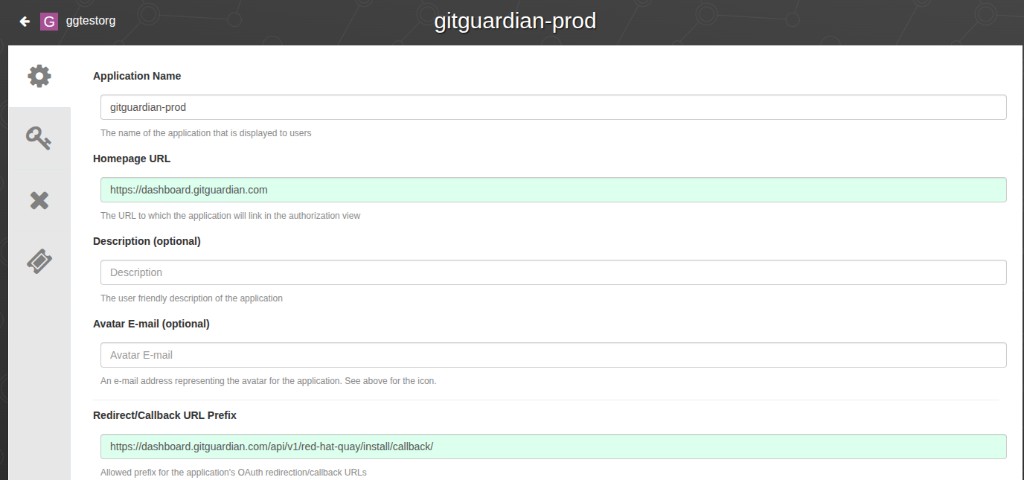
-
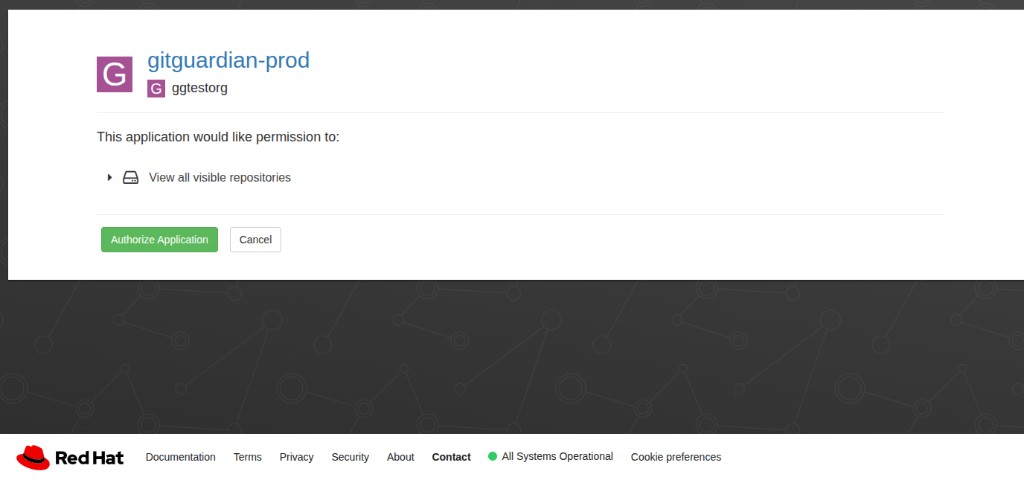
The application will request the following permission when users authorize it:
View all visible repositories
-
Save the application and note the Client ID and Client Secret
Step 2: Connect Red Hat Quay to GitGuardian
- In the GitGuardian platform, navigate to the Sources integration page
- Click Install next to Red Hat Quay in the Container registries section
- Click Install on the Red Hat Quay integration page
- Type your Red Hat Quay instance URL (e.g.,
https://quay.ioorhttps://quay.example.com) - Paste the Client ID from the OAuth Application you created
- Paste the Client Secret from the OAuth Application you created
- Click Add
- Customize your monitored perimeter:
- Monitor specific Red Hat Quay repositories (Recommended)
- No repositories are monitored by default, you will have to select them manually.
- Newly created repositories will not be monitored by default. You can adjust this setting at any time.
- Monitor the entire Red Hat Quay instance
- All repositories are monitored by default with a full historical scan automatically triggered.
- Newly created repositories will be monitored by default. You can adjust this setting at any time.
- Monitor specific Red Hat Quay repositories (Recommended)
That's it! Your Red Hat Quay instance is now installed, and GitGuardian is monitoring all container images of your selected repositories for secrets.
Customize your monitored perimeter
To customize the monitored repositories, navigate to your Red Hat Quay settings from the Sources integration page.
- Select/Unselect repositories to include or exclude them from monitoring
- Confirm by clicking Update monitored perimeter
Automatic repository monitoring
You can enable or disable the automatic addition of newly created repositories to your monitored perimeter by switching the option in your Red Hat Quay settings.
Managing your integration
Monitoring health and Maintenance
If you need to modify your integration settings or troubleshoot connectivity issues, access the management interface through Sources integration.
Uninstalling the integration
While our goal is to help you maintain comprehensive security coverage, you may uninstall the integration whenever necessary:
- Navigate to Sources integration
- Click Edit next to the integration name
- Click Configure
- Click the delete icon next to your resource
- Confirm the removal
Note: Removing the integration preserves your incident history, but stops future scanning and presence checks for the integrations that support it.
Excluded paths
GitGuardian automatically excludes files from scanning if their paths contain any of these regular expressions:
/__pypackages__/
/\.venv/
/\.tox/
/site-packages/
/venv/
distutils/command/register\.py
python.*/awscli/examples/
python.*/dulwich/(tests|contrib/test_)
python.*/hgext/bugzilla\.py
python.*/mercurial/util\.py
python.*/test/certdata/
python.*/urllib/request\.py
python.*/pygments/lexers/
/cryptography.+/tests/.+(fixtures|test)_.+\.py
/python.+pygpgme.+/tests/
botocore/data/.+/(examples|service)-.+\.json
usr(/local)?/lib/python.+/dist-packages
/libevent.+/info/test/test/
/conda-.+-py.+/info/test/tests.+/test_.+\.py
/python[^/]+/test/
/man/man5/kdc\.conf\.5
erlang.*(inets|ssl).*/examples/
/gems/.*httpclient.*/(test|sample)/
/gems/.*faraday.*/
/vendor/bundle/
/\.gem/
ruby-[^/]+/test/openssl/
/(g|G)o/src/cmd/go/internal/.*_test\.go
/(g|G)o/src/cmd/go/internal/.*/testdata/
/(g|G)o/src/cmd/go/testdata/
/(g|G)o/src/crypto/x509/platform_root_key\.pem
/(G|g)o/src/crypto/(tls|x509)/.*_test\.go
/(g|G)o/src/net/(url|http)/.*_test\.go
src/github.com/DataDog/datadog-agent/.*test.*\.go
google/internal/.*_test\.go
golang.org.*oauth2@.*/.*\.go
/flutter/.*/packages/flutter_tools/test/data/
/flutter/.*/examples/image_list/lib
/\.pub-cache
etc/ssl/private/ssl-cert-snakeoil\.key
perl.*Cwd\.pm
ansible/.*/tests/(integration|unit)/
ansible/.*/test/awx
ansible/collections/ansible_collections/.*/plugins/
/curl/.*/(tests|docs|lib/url\.c)
/doc/wget.+/NEWS
dist/awscli/examples/
usr(/local)?/lib/aws-cli/examples/
/google-cloud-sdk/(lib|platform)/
\.git/modules/third[-_]?party/
\.git/modules/external/
/\.npm/_cacache
/node_modules/
/\.parcel-cache/
/\.yarn/cache/
/\.m2/
/\.ivy2/cache/
/\.mix/
/\.hex/
/composer/cache/
/\.nuget/packages/
/libgpg-error/errorref\.txt
/Homebrew/Library/Taps/
/tcl[^/]+/http-.+\.tm
/tcl[^/]+/[^/]+/http-.+\.tm
usr/share/lua/[^/]+/posix/init\.lua
openssl/openssl-[^/]+/test/recipes/
usr/share/doc/libssl-doc/demos/
boringssl/src/third_party/[^/]+test[^/]+/[^/]+_test\.json
Additional Self-Hosted considerations
For GitGuardian Self-Hosted instances, scan frequency can be configured in the Admin Area:
- Time interval unit: seconds
- Default value: 86400 (1 day)
- Minimum value: 1800 (30 minutes)
Privacy and compliance
Data handling
GitGuardian processes your data solely to detect exposed secrets:
- Read-only access: We never require write access unless scoped to creating webhooks to receive and process real-time events
- Minimal data retention: We store only data and metadata necessary for incident management
- Encryption: All data in transit and at rest is encrypted
- Compliance: We follow the same data protection standards as our other integrations
Regional considerations
GitGuardian hosts its services in two AWS regions: eu-central-1 (Frankfurt) and us-west-2 (Oregon). Ensure your GitGuardian deployment region aligns with your data residency requirements. Contact support if you need guidance on compliance with local regulations.
User notification
Country-specific laws and regulations may require you to inform your users that your repositories are being scanned for secrets. Here is a suggestion for a message you may want to use:
As part of our internal information security process, the company scans its repositories for potential secrets leaks using GitGuardian. All data collected will be processed for the purpose of detecting potential leaks. To find out more about how we manage your personal data and to exercise your rights, please refer to our employee/partner privacy notice.
Please note that only repositories relating to the company's activity and business may be monitored and that users shall refrain from sharing personal or sensitive data not relevant to the repository's purpose.

